
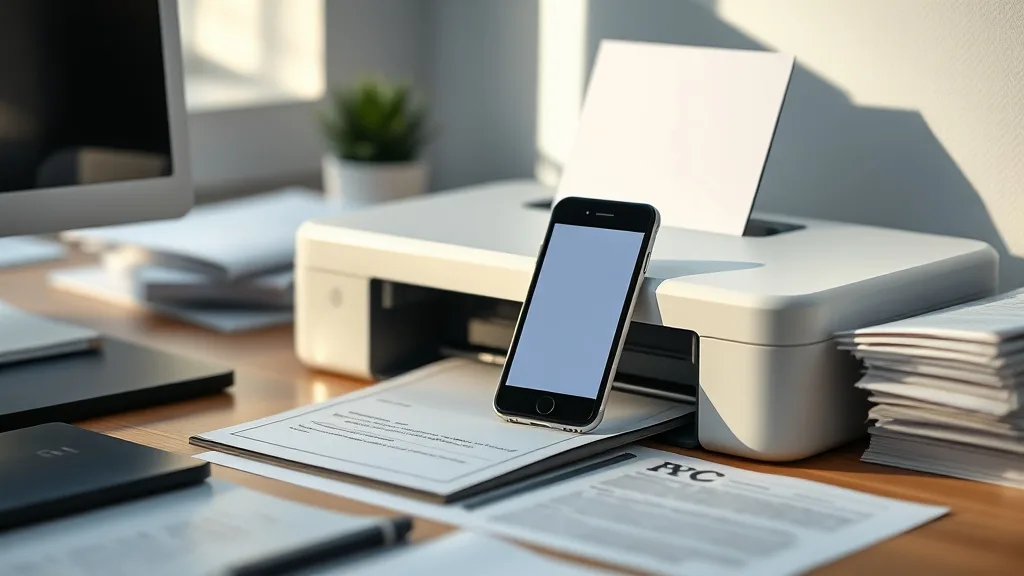
If you’ve got a smartphone full of photos, documents, or important files but don’t want to pay for an expensive subscription service like Instant Ink, you’re probably wondering how to print directly from your phone without it. While Instant Ink can simplify ink management, its cost and lock-in can feel like a raw deal for many printer owners. This guide walks you through printing from a phone without relying on Instant Ink, focusing on cost-effective, practical methods including compatible cartridges, app use, and understanding printer compatibility.
What It Means to Print from a Phone Without Instant Ink
Instant Ink is a subscription program some printer manufacturers offer, where ink cartridges are delivered automatically before you run out. While convenient, it locks you into specific cartridges and fees that might not suit frugal users or those who want more control over printer costs. Printing without it means you handle ink replacement, cartridge sourcing, and printer settings yourself.
This approach is especially important if you’ve been burned by OEM cartridge pricing, chip lockouts that prevent refilled or third-party cartridges from working, or if you want to evaluate compatible cartridges’ reliability yourself.
See also: How to Extend Printer Ink Cartridge Life for Maximum Savings
How to Print from a Phone Without Instant Ink: Step-by-Step
Phone cases - Sponsored - 15% off first order
Phone Case Gift - They pick the model · 2 minutes Code FIRST15GIFT1. Verify Your Printer’s Wireless Printing Capability
Ensure your home or office printer supports wireless printing either via Wi-Fi, Bluetooth, or Wi-Fi Direct. Modern printers usually do, but older models may require network setup or USB adapters.
2. Connect Your Phone and Printer to the Same Network
For Wi-Fi printing, connect both the phone and the printer to the same Wi-Fi network. Bluetooth printers can pair directly with your phone. Check your printer manual for setup instructions.
3. Install the Manufacturer’s or Third-Party Printing App
Most printer manufacturers have apps that enable direct printing from your smartphone:
- These apps automatically detect compatible printers on the network.
- They allow basic print settings like paper size and color options.
Alternatively, common universal apps (e.g., Google Cloud Print alternatives) support multiple brands but be wary of app reliability and privacy.
4. Use Compatible Cartridges to Avoid Instant Ink Lockout
Instant Ink cartridges contain chips that track usage and can refuse to work if the subscription lapses or third-party cartridges are used. To avoid this:
- Purchase compatible cartridges designed specifically for your printer model.
- Use cartridges from trusted third-party suppliers with updated chips.
- Refill empty cartridges yourself after proper cleaning and handling to lower costs.
Beware that compatible cartridges may sometimes have a higher initial fail rate but typically offer better cost efficiency. Also, firmware updates from the printer manufacturer may block some chips, requiring you to check for compatibility before updating.
5. Adjust Print Settings for Lower Ink Usage
To further reduce costs without Instant Ink:
- Print in draft or grayscale mode where quality is non-essential.
- Use duplex printing (double-sided) to save paper.
- Limit unnecessary color prints.
6. Print Directly from Phone Apps or File Browsers
If your phone’s printing app supports it, print directly from popular apps such as:
- Photos or Gallery apps
- Email clients
- Document suites (Google Docs, Microsoft Office Mobile)
- File managers
Most apps have a “Print” option in the share menu if a compatible printer is detected.
7. Use AirPrint or Google Cloud Print Alternatives
For iOS users: AirPrint is built in and works with AirPrint-compatible printers without a separate app.
For Android users: Native print services or manufacturer print services offer integration; Google Cloud Print was deprecated, so look for alternatives or manufacturer apps.
Understanding Cost-Per-Page vs. Instant Ink
The biggest motivation to print without Instant Ink is outright cost savings. Let’s unpack cost-per-page math when comparing brand-name cartridges, third-party compatibles, and Instant Ink.
| Cartridge Type | Average Cartridge Cost | Approximate Yield (Pages) | Estimated Cost Per Page | Notes |
|---|---|---|---|---|
| Brand-Name Cartridge | $30 | 300 | $0.10 | Reliable print quality, expensive ink |
| Third-Party Compatible | $15 | 250 | $0.06 | Lower cost, variable quality & yield |
| Refilling DIY | $3 (ink bottle) | 300 | $0.01 | Cheap upfront, requires effort |
| Instant Ink Plan | $3/month + limited pages | Varies by plan | $0.05 - $0.10 | Convenient but subscription locked |
Depending on your print volume, a compatible or refill route may drastically reduce per-page costs compared to Instant Ink, despite initial quality and risk trade-offs.
Common Pitfalls When Printing Without Instant Ink
Phone cases - Sponsored - 15% off first order
Titan Case - Precision fit · 2,000+ designs Code FIRST15TITChip Lockouts and Firmware Updates
Printer makers increasingly use chips on cartridges to lock out non-OEM options, especially in Instant Ink-compatible models. Firmware updates might “brick” third-party cartridges, forcing you to:
- Delay or avoid automatic firmware upgrades.
- Purchase updated compatible cartridges with new chips.
- Sometimes reprogram or reset cartridges.
Print Quality Variability
Third-party and refilled cartridges often have inconsistent ink formulations, causing:
- Faded colors or streaking.
- Faster cartridge drying or clogging.
- Printer error messages.
Proper cartridge handling, cleaning nozzles, and choosing reputable suppliers reduce risks.
App Incompatibility or Setup Issues
Not all printer apps are intuitive or compatible with all smartphone operating systems or versions, leading to:
- Printer not detected on the network.
- Print failures.
- Missing print options or features.
Stick with official or highly-rated apps and ensure devices share the same Wi-Fi network.
Printer Compatibility and Chip Lockout Comparison
| Factor | Brand-Name Cartridge | Third-Party Compatible Cartridge | Instant Ink Cartridge |
|---|---|---|---|
| Chip Lockout Risk | None | Medium-High | High |
| Firmware Update Impact | None | May disable cartridges | N/A (tied to subscription) |
| Print Quality | High | Variable | High |
| Cost per Page | High | Low-Medium | Medium |
| Easy Availability | Manufacturer, retail stores | Online aftermarket vendors | Subscription only |
| Subscription Required | No | No | Yes |
| Technical Involvement | Low | Medium | Low |
This matrix helps illustrate why users burnt by Instant Ink prefer a combination of wireless printing, third-party compatibles, and manual cost control.
Frequently Asked Questions
Phone cases - Sponsored - 15% off first order
Phone Cases For Charity - Every case supports a cause Code GIVE10Q: Can I print from my phone if my printer doesn’t have Wi-Fi?
A: Yes, if your printer supports Bluetooth printing or USB OTG adapters. Otherwise you may need to connect through a computer sharing the printer.
Q: Are third-party cartridges guaranteed to work with my phone’s print app?
A: Generally, yes, but compatibility depends more on your printer model and app than the cartridge itself. Issues often arise due to chip lockouts or firmware.
Q: How do I avoid firmware updates that block third-party cartridges?
A: Disable automatic updates on your printer or check online forums for advice before proceeding with firmware upgrades.
Printing from a phone without Instant Ink requires a bit more setup and knowledge but offers significant control over ink costs and avoids subscription lock-in. With careful cartridge selection, app use, and print strategy, you can keep your printer running smoothly and your print bills manageable.
Top Picks
Watchdog picks
- B0748ZCG45
- B07R3N9X3F
- 65XL 65 Ink Cartridges Black/Color Combo Pack Replacement for HP 65XL Ink Work f
- 67XL 67 XL 6055e 2755e 2800e 2855e 6000 Ink Cartridges Black/Color Combo Pack Co
- HP OfficeJet Pro 8125e Wireless All-in-One Color Inkjet Printer, Print, scan, Co
- B09XT22566
- Epson EcoTank Wireless Color All-in-One Cartridge-Free ET-3850 Supertank Inkjet
- myCartridge SUPRINT 245XL Ink Cartridge Replacement for Canon 245XL 246XL Combo
Products in this guide
- HP DeskJet 2755 Wireless All-in-One Printer, Mobile Print, Scan & Copy, Instant Ink Ready, Works with Alexa (3XV17A)
- HP DeskJet 2755 All-in-One Wireless Printer Scanner Copier Instant Ink Ready Mobile Print Black 7.5ppm Color 5.5ppm Wifi
- HP OfficeJet Pro 9125e Wireless All-in-One Color Inkjet Printer, Print, scan, copy, fax, ADF, Duplex printing best-for-o
- HP OfficeJet Pro 8125e Wireless All-in-One Color Inkjet Printer, Print, scan, Copy, ADF, Duplex Printing Best-for-Home O