
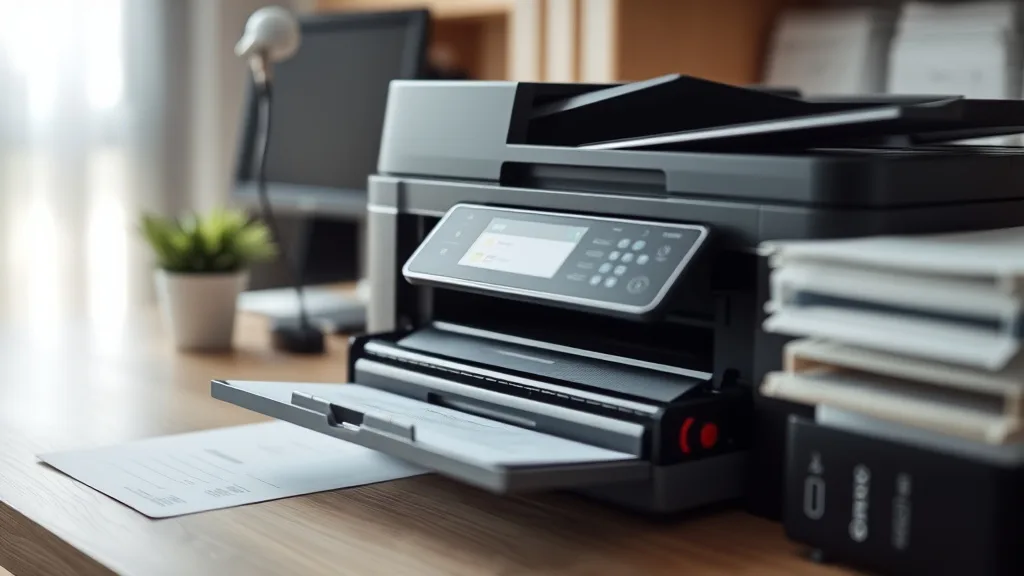
Troubleshooting Color Accuracy Problems in Compatible Toner Cartridges
If you’ve switched to compatible toner cartridges to cut down on printing costs, you may have noticed a frustrating problem: colors don’t look quite right. Whether prints appear too dull, washed out, too dark, or simply off-hue compared to your original brand-name cartridges, color accuracy problems can undermine your efforts to save money with third-party supplies. This article breaks down why these color issues happen with compatible toners, how the technology works, when and how to troubleshoot, and the trade-offs to consider.
What Color Accuracy Problems Look Like
Before diving in, it’s important to clarify the types of color accuracy problems you might encounter:
- Color shifts: Prints skewing toward one color family (e.g., too red, too green, too yellow)
- Washed out or faded colors: Colors look pale or lacking in vibrancy
- Uneven color distribution: Splotches, streaks, or inconsistent brightness on prints
- Incorrect gray balance: Blacks appearing bluish or reddish instead of neutral gray
- Premature fading or color change over time: Prints lose color fidelity quickly
These symptoms can indicate toner formulation issues, printer communication errors, or mechanical problems.
How Compatible Toner Cartridges Work vs. Brand-Name
Phone cases - Sponsored - 15% off first order
Phone Case Gift - They pick the model · 2 minutes Code FIRST15GIFTUnderstanding how color toner cartridges function can help pinpoint where issues arise. Printers create color images by layering cyan, magenta, yellow, and black (CMYK) toners onto paper. Each toner is a fine powder fused to the paper by heat. Brand-name toners are engineered for the specific printer model, calibrated for particle size, melting temperature, and pigment composition.
Compatible toner cartridges are manufactured by third parties aiming to replicate this performance. However, they often differ slightly in:
- Toner particle size and shape: Affects color density and sharpness
- Pigment quality: Impacts vibrancy and accuracy of hues
- Melting/fusing point: Can cause uneven toner bonding leading to color variation
- Chip and firmware compatibility: Determines how printer adjusts color profiles and alerts users
Because compatible toners cannot access the OEM’s proprietary formulas or software calibration, some color discrepancies can occur.
When to Troubleshoot Color Accuracy Issues
If you’re encountering color shifts or faded output after installing compatible cartridges, consider the following scenarios as triggers to troubleshoot:
- First use of new compatible cartridge(s)
- After printer firmware or driver updates
- Following a cartridge replacement or refill
- Changes in paper brand or type
- Exposure to high humidity or extreme temperatures
How to Troubleshoot Color Accuracy Problems in 7 Steps
Phone cases - Sponsored - 15% off first order
Titan Case - Precision fit · 2,000+ designs Code FIRST15TIT1. Print a Test Page or Color Calibration Sheet
Use your printer’s built-in test pages or calibration tools to evaluate the colors. This confirms whether the problem is general or affects specific colors.
2. Clean Printer Components
Dust, toner residue, or buildup on the drum, rollers, corona wires, or fuser can alter color output. Follow your printer manual to carefully clean these parts.
3. Check Paper Compatibility
Different paper types affect toner adhesion and color vibrancy. Use recommended papers or try switching to a higher-quality matte or glossy sheet to see if colors improve.
4. Verify Cartridge Installation and Orientation
Compatible cartridges sometimes have different tab placements or chip locations. Proper seating ensures correct toner flow and communication with the printer.
5. Update or Reinstall Printer Drivers
Printer drivers contain color profiles essential for accurate output. Download the latest OEM drivers and reinstall if necessary to reset color management.
6. Adjust Color Settings Manually
Use your printer’s control panel or driver software to tweak color balance, saturation, brightness, and contrast. Some printers allow you to save custom profiles tailored for compatible toners.
7. Test with Another Cartridge or Brand
Try another compatible cartridge from a different supplier or revert temporarily to a brand-name cartridge. This helps isolate whether the issue stems from the cartridge or printer.
Common Causes and How to Address Them
| Cause | Symptom | Diagnosis | Solution |
|---|---|---|---|
| Toner pigment formulation | Color shifts, muted hues | Compare test prints with brand-name cartridge | Switch to a compatible brand with better reviews on color accuracy |
| Incompatible or worn chip | Printer error messages, poor color detection | Check chip contacts and firmware updates | Re-seat cartridge; update firmware; try different compatible cartridge |
| Paper quality/type mismatch | Faded colors, streaks | Change paper to printer-specified type | Use higher quality paper designed for color prints |
| Printer hardware contamination | Spots, streaks, uneven color | Visual inspection of inside components | Clean rollers, drum, corona wire per manual |
| Driver or color profile errors | Wrong color reproduction | Reinstall or update printer drivers | Download official drivers and reset color profiles |
Compatibility vs. Cost vs. Reliability Trade-off
Phone cases - Sponsored - 15% off first order
Phone Cases For Charity - Every case supports a cause Code GIVE10Choosing compatible toner cartridges is primarily a cost-saving move. However, you trade some level of guaranteed color fidelity, consistency, and printer reliability guaranteed by OEM supplies.
| Factor | Brand-name Cartridge | Compatible Cartridge |
|---|---|---|
| Cost per page | Higher (£££) | Lower (£) |
| Color accuracy | Optimized for printer | Variable; depends on manufacturer |
| Cartridge yield | Published and consistent | May vary; check independent tests |
| Chip and firmware fit | Guaranteed compatibility | Risk of chip lockout or partial recognition |
| Printer lifespan | Typically safe and warranty covered | May void warranty; possible increased wear |
| Customer support | Full OEM support | Limited or none |
Balancing these trade-offs is key. Test small quantities or research third-party brands with proven color accuracy track records.
Additional Tips for Better Color Results
- Store cartridges sealed and away from light or heat to preserve toner quality
- Avoid mixing brand-name and compatible cartridges in the same printer when doing color prints
- Update printer firmware cautiously; some updates disable certain third-party cartridges
- Consider professional color calibration hardware for critical print jobs
Frequently Asked Questions
Q: Why do my compatible toner colors look different than brand-name?
A: Compatible toners use different pigment formulas and particle sizes, leading to subtle or noticeable color shifts compared to OEM cartridges.
Q: Can a firmware update cause my compatible cartridge colors to worsen?
A: Yes. Printer firmware updates often contain anti-counterfeit measures that can disable or impair compatible cartridge chips, affecting color accuracy and printer recognition.
Q: Will using compatible toner cartridges damage my printer?
A: Most quality compatibles are safe for printers, but poor-quality ones may cause increased wear or malfunction. Always buy from reputable suppliers and follow cleaning and maintenance procedures.
By understanding the root causes of color accuracy problems with compatible toner cartridges and following this structured troubleshooting approach, you can improve your print quality while balancing cost and reliability effectively.
See also: Troubleshooting Color Accuracy Issues with Compatible Ink Cartridges
Top Picks
Watchdog picks
- Stuart Weitzman Women’s Metro Slingback Sandal,Palomino Llama Calf,8 M US
- B00SAYAKPK
- HP OfficeJet Pro 9135 Wireless All-in-One Color Inkjet Printer, Print, Scan, Cop
- B07L2MZW6B
- B08R3R5KXJ
- TN730 TN-730 Black Toner Cartridges 2 Pack Compatible TN730 Toner Cartridge Repl
- B07Q5J5YXV
- HP OfficeJet Pro 8125e Wireless All-in-One Color Inkjet Printer, Print, scan, Co
Products in this guide
- Inkjet Refill Kit Pro — Compatible with HP, Canon, Epson, and Lexmark Cartridges
- EPSON 702 DURABrite Ultra Ink Standard Capacity Black & Color Cartridge Combo Pack (T702120-BCS) Works with WorkForce Pr
- EPSON 702 DURABrite Ultra Ink High Capacity Black & Standard Color Cartridge Combo Pack (T702XL-BCS) Works with WorkForc
- EPSON 502 EcoTank Ink Ultra-high Capacity Bottle Color Combo Pack Works with ET-2750, 2760, 2850, 3750, 3760, 3850, 4850