
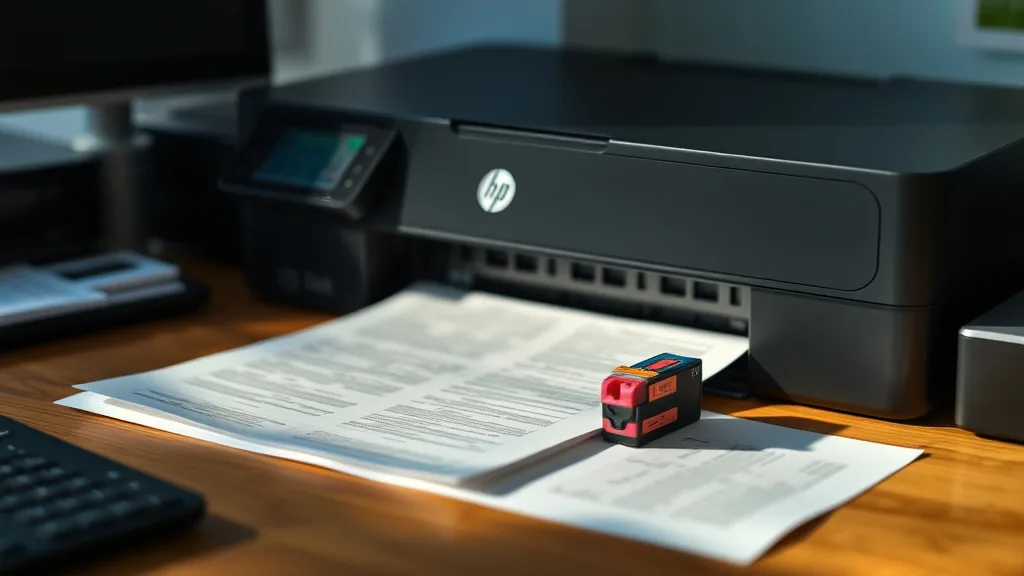
Many HP printer owners encounter ink flow problems that lead to poor print quality or complete print failure—even when the ink cartridges are not empty. The default impulse is to replace the cartridge, which can be costly and wasteful. Fortunately, there are effective troubleshooting steps to fix common HP ink flow issues without immediately buying new cartridges. This article provides practical, cost-conscious guidance on diagnosing and resolving these problems to help you restore your printer’s performance and extend cartridge life.
What Causes HP Ink Flow Problems?
Ink flow issues occur when ink is unable to move properly from the cartridge through the printhead to the paper. Common causes include:
- Dry ink clogs: Ink dries inside the cartridge nozzles or printhead, impeding flow.
- Air bubbles or vacuum lock: Air trapped inside cartridges blocks ink delivery.
- Improper cartridge installation: Cartridge not seated correctly can disrupt ink flow.
- Debris or dust: Foreign particles clogging nozzles or printhead.
- Firmware or chip-related restrictions: Printer chip lockouts or firmware errors that misread cartridge status.
- Incompatible cartridges or refills: Third-party cartridges or refills may have differences affecting ink flow.
Understanding these causes helps you target the right fixes without unnecessary cartridge replacements.
See also: How to Extend Printer Ink Cartridge Life for Maximum Savings
How Ink Flow Works in HP Printers
Phone cases - Sponsored - 15% off first order
Phone Case Gift - They pick the model · 2 minutes Code FIRST15GIFTHP ink cartridges often integrate the ink reservoir and printhead into one unit. Ink travels from the cartridge reservoir through tiny nozzles on the printhead, which uses a thermal or piezoelectric mechanism to spray ink droplets accurately onto the paper. Maintaining clear, unblocked nozzles and avoiding air pockets is crucial for smooth ink flow.
When the printer detects a cartridge, integrated chips communicate cartridge info including ink levels to the printer firmware. If the chip signals errors or depletion, the printer may block printing even if ink remains physically inside, complicating “ink flow” troubleshooting.
How to Fix Common HP Ink Flow Problems Without Replacing Cartridges
Here are tried-and-tested steps to resolve ink flow issues safely and efficiently:
1. Perform a Printhead Cleaning Cycle
HP printers include automated maintenance tools designed to clear minor clogs.
- Access your printer’s maintenance menu or HP printer software on your computer.
- Select “Clean Printhead” or “Clean Cartridge.”
- Run the cleaning cycle 1-3 times. Avoid excessive repetition as it consumes ink.
This removes dried ink and unclogs nozzles often enough to restore flow.
2. Remove and Reinstall Cartridges Correctly
Cartridges not seated firmly can cause air gaps:
- Turn off the printer and remove cartridges.
- Inspect for debris, dried ink, or damaged contacts.
- Wipe cartridges carefully with a lint-free cloth and distilled water if dirty.
- Reinstall cartridges firmly until they click into place.
Double-check placement — some HP models have specific slots and orientations.
3. Check for Air Bubbles and Vacuum Lock
Small air bubbles trapped inside cartridges affect ink suction:
- Gently tap the cartridge side to loosen trapped air.
- Store cartridges upright to promote consistent ink flow.
- For some refillable cartridges, carefully puncture the ink vent tape to equalize pressure.
Avoid shaking or aggressive tapping that risks ink spills or damage.
4. Clean the Printhead Manually
If automatic cleaning fails:
- Remove cartridges and locate the printhead (if separate).
- Dampen a lint-free cloth with distilled water or isopropyl alcohol (90% or higher).
- Gently wipe the nozzle area and electrical contacts.
- Allow the printhead to dry fully before reinsertion.
Caution: Do not touch electrical contacts with fingers or use excessive force.
5. Reset the Printer and Update Firmware
Firmware glitches or chip communication issues can mimic ink flow problems:
- Power off the printer and unplug it for 5-10 minutes.
- Reconnect and power on to reset internal memory.
- Visit HP’s official website to check for firmware updates that improve cartridge compatibility.
Note: Firmware updates may increase compatibility with brand-name or compatible cartridges while potentially locking out some third-party refills.
6. Run a Nozzle Check Pattern
To confirm if nozzles are firing correctly:
- Access “Print Quality Check” or “Nozzle Check” test from your printer control panel or software.
- Examine the test page for missing lines or streaks indicating clogged nozzles.
- Repeat cleaning cycles if needed.
This diagnostic step guides whether you should escalate cleaning efforts or try cartridge replacement.
7. Evaluate Cartridge Compatibility and Chip Lockout Risk
Third-party or refilled cartridges sometimes have chip inconsistencies causing the printer to misread ink levels, leading to premature error warnings even if ink remains.
- Verify sources of third-party cartridges for reputation and quality controls.
- Check online forums or user reviews for specific HP model compatibility.
- Consider simple chip reset tools available for some HP cartridges to recalibrate ink reporting.
Remember, while many third-party cartridges work fine, chips are an ongoing challenge affecting ink flow and printer acceptance.
Comparing Fix Methods: Effectiveness vs Risk and Cost
Phone cases - Sponsored - 15% off first order
Titan Case - Precision fit · 2,000+ designs Code FIRST15TIT| Fix Method | Effectiveness | Risk of Damage | Ink Consumption | Cost | When to Use |
|---|---|---|---|---|---|
| Automated Printhead Cleaning | Moderate (best for minor clogs) | Low | Uses ink to flush | Free | First step for print quality issues |
| Cartridge Removal & Reinstall | Moderate (fixes seating issues) | Low | None | Free | Suspected poor cartridge contact |
| Air Bubble/Vacuum Adjustment | Moderate (helps ink pressure) | Low | None | Free | For refilled cartridges or after storage |
| Manual Printhead Cleaning | High (for stubborn clogs) | Medium (if done improperly) | None | Free | If automated cleaning fails |
| Reset & Firmware Update | Variable (chip/firmware related) | Low | None | Free | When printer misreads cartridges |
| Chip Reset or Compatible Cartridge Check | Variable (depends on chip) | Low | None | Costs vary | For third-party cartridges experiencing errors |
When to Consider Cartridge Replacement
If after multiple cleaning cycles, printhead cleaning, and resetting, print quality remains poor or printhead errors persist, a cartridge replacement may be necessary. OEM cartridges tend to have higher reliability with chip compatibility and ink formula, but at a higher price per page.
Third-party replacements may be a middle ground but require careful research to avoid chip lockouts or ink formula incompatibilities that exacerbate flow problems.
Common Pitfalls to Avoid
Phone cases - Sponsored - 15% off first order
Phone Cases For Charity - Every case supports a cause Code GIVE10- Excessive cleaning cycles: Using too many automated cleanings wastes ink, increasing cost per page.
- Using tap water: Minerals in tap water can damage printheads; always use distilled water for cleaning.
- Ignoring chip lockouts: Firmware updates frequently tighten restrictions, so failing to address chip problems may cause recurring errors.
- Shaking cartridges: Can introduce air bubbles or damage internal components.
- Using old refills: Ink degrades over time, causing clogging or flow restriction.
Frequently Asked Questions
Q: Will cleaning my printhead damage my HP cartridge?
A: Proper cleaning with distilled water and gentle wiping will not damage cartridges. Avoid harsh chemicals or scrubbing.
Q: Why does my HP printer say the cartridge is empty when there’s still ink?
A: Chip sensors report ink levels and can misread third-party or refilled cartridges, causing premature “empty” warnings.
Q: How many times can I run the printhead cleaning cycle before replacing a cartridge?
A: Generally, running 2-3 cleaning cycles is advisable. Beyond that, printhead or cartridge damage is likely, and replacement should be considered.
By following these practical steps, you can often restore proper ink flow without the expense of new cartridges. Regular maintenance and understanding ink flow mechanics help optimize your HP printer’s lifespan and reduce ink-related frustrations.
Top Picks
Watchdog picks
- B0FMB4JBJ8
- HP OfficeJet Pro 9135 Wireless All-in-One Color Inkjet Printer, Print, Scan, Cop
- B08JHWZ15B
- AYMSous 5-Pack Universal Ink Refill Kit for All HP Canon Epsn Brother Printers C
- AOLIBE MLT-D111S Toner Cartridge High Yield Compatible for Samsung 111S MLT111S
- B0CCNKGY6J
- InkOwl Compatible Ink Cartridge Replacement for Roland ECO-SOL MAX Printers ESL3
- B0D3XGJ6HW
Products in this guide
- HP DeskJet 2755 Wireless All-in-One Printer, Mobile Print, Scan & Copy, Instant Ink Ready, Works with Alexa (3XV17A)
- HP DeskJet 2755 All-in-One Wireless Printer Scanner Copier Instant Ink Ready Mobile Print Black 7.5ppm Color 5.5ppm Wifi
- HP OfficeJet Pro 9125e Wireless All-in-One Color Inkjet Printer, Print, scan, copy, fax, ADF, Duplex printing best-for-o
- HP OfficeJet Pro 8125e Wireless All-in-One Color Inkjet Printer, Print, scan, Copy, ADF, Duplex Printing Best-for-Home O