
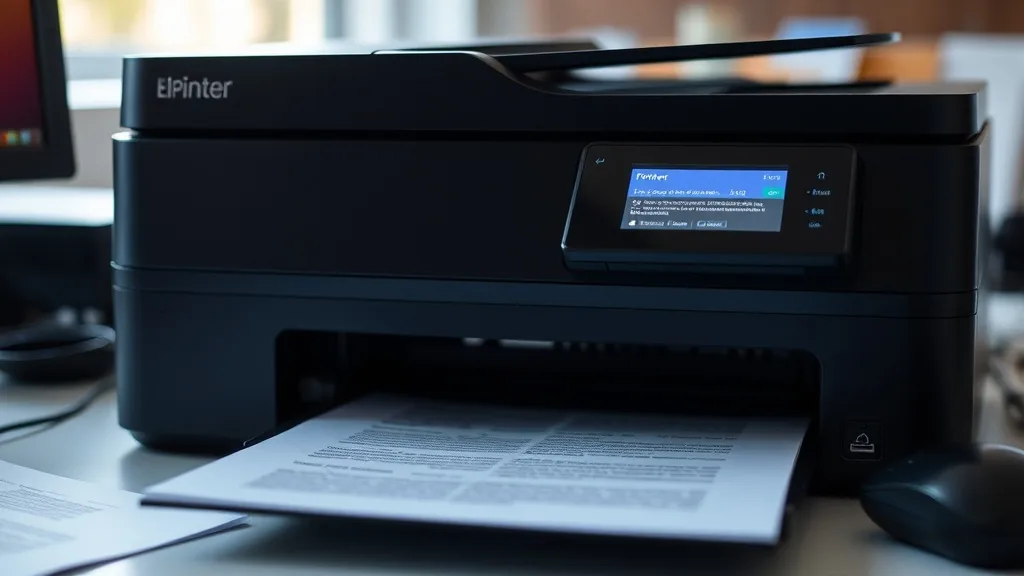
Troubleshooting printer error codes related to ink and toner can be frustrating, especially when these messages stop your print job midstream. Common issues such as “Ink Cartridge Not Recognized,” “Toner Low,” or obscure error codes can leave you guessing whether you need a replacement, a reset, or a service call. This article breaks down how these errors work, why they appear, and practical steps to resolve them — saving you time, frustration, and unnecessary expenses.
What Printer Ink and Toner Error Codes Are
Printers use built-in diagnostic systems to monitor the status of ink and toner cartridges. When something isn’t right—low ink levels, incompatible cartridges, chip issues, or installation errors—the printer’s display or software will present an error code or message. These alerts aim to protect the printer hardware or the print quality but can sometimes be triggered by false positives or minor issues.
Error codes related to ink and toner can generally be split into a few categories:
- Cartridge Recognition Errors: When the printer doesn’t detect a cartridge or deems it incompatible.
- Low Ink/Toner Warnings: Alerts signaling the cartridge is near empty or needs replacement.
- Cartridge Installation Errors: When cartridges are incorrectly seated or missing.
- Chip or Firmware Lockouts: Occur when the printer’s firmware detects potential non-OEM cartridges or chip issues.
- Print Quality Alerts: Sometimes the printer warns about leaking cartridges or clogged nozzles, indirectly related to ink/toner.
Understanding the specifics behind these error codes lays the groundwork for effective troubleshooting.
See also: Troubleshooting Common Printer Ink Cartridge Errors Quickly
How Printer Ink and Toner Error Codes Work
Phone cases - Sponsored - 15% off first order
Phone Case Gift - They pick the model · 2 minutes Code FIRST15GIFTModern printers have integrated sensors and microchips embedded in cartridges that communicate ink or toner levels and cartridge identity to the printer’s processor. Here’s a brief breakdown:
-
Cartridge Chip Communication: OEM cartridges feature a chip programmed to report ink levels, authenticate the brand, and monitor cartridge health. Third-party cartridges or refills might mimic this chip or bypass some features, potentially triggering errors or warnings.
-
Optical Sensors: Some printers use optical sensors to detect cartridge presence or toner density, adding an extra verification layer.
-
Firmware Rules: Printer firmware can reject cartridges deemed counterfeit or incompatible. Some printers cycle through error states as firmware updates tighten security or chip lockouts.
-
Ink Level Estimation Algorithm: Ink/toner levels aren’t always physical measurements but rather algorithms that estimate remaining capacity based on usage patterns.
Because of this complexity, error codes related to cartridges can occur for various reasons, including hardware faults, firmware quirks, or genuine cartridge issues.
When to Use This Troubleshooting Guide
Apply this troubleshooting guide if you encounter any of the following symptoms on your printer display or connected computer:
- Error messages referencing “Cartridge not recognized,” “Replace Toner/Ink,” or error codes like Exxx or 0xxx specifically calling out ink or toner.
- Printer refuses to print despite having what appears to be valid ink or toner installed.
- Print quality issues accompanied by error warnings.
- Unexpected cartridge errors following a cartridge change or refill.
- Reoccurring error messages after resetting or restarting the printer.
Being systematic about the problem ensures you don’t waste money replacing cartridges or printer parts unnecessarily.
Common Pitfalls When Troubleshooting Ink and Toner Errors
Phone cases - Sponsored - 15% off first order
Titan Case - Precision fit · 2,000+ designs Code FIRST15TIT- Ignoring Genuine Cartridge Hardware Issues: Sometimes cartridges are physically damaged and must be replaced.
- Over-reliance on Reset Tricks: Resetting firmware or chips can lead to lockouts or mask underlying issues.
- Using Incompatible Third-Party Cartridges: Not all compatible or refill cartridges fully work with firmware updates.
- Missing Firmware Updates that Fix Bugs: Occasionally, manufacturers release updates that resolve certain error codes.
- Confusing Ink/Toner Errors with Other Printer Issues: Paper jams, connectivity, or print driver problems can masquerade as cartridge errors.
Avoid these traps by following the step-wise approach below.
Step-By-Step Troubleshooting Process for Ink and Toner Error Codes
1. Identify the Exact Error Code or Message
Start by noting the exact error code or message on the printer screen or driver software. Refer to the printer manual or manufacturer support pages for the code’s definition. Sometimes, the printer software gives more detailed diagnostics than the printer’s small screen.
2. Check Cartridge Installation and Physical Condition
Remove the ink or toner cartridge gently:
- Verify it is seated correctly in the cartridge bay.
- Ensure cartridge locks or latches are engaged fully.
- Inspect for damaged seals, broken clips, or leaks.
- For toner cartridges, check for toner spills inside the printer.
Reinstall carefully, then power cycle the printer and check if the error persists.
3. Confirm Cartridge Compatibility
- Verify the cartridge is compatible with your printer model.
- If you are using a third-party, refill, or remanufactured cartridge, be aware some printers reject these due to chip mismatches or updated firmware.
- Consult the seller or manufacturer compatibility list. If compatibility doubts remain, try an OEM cartridge to confirm if that resolves the error.
4. Clean Cartridge Chip and Printer Contacts
Dirt or residue on the cartridge chip or the printer’s contact pins can cause communication errors:
- Use a lint-free cloth or cotton swab lightly dampened with isopropyl alcohol.
- Gently wipe the chip and contacts on both cartridge and printer.
- Let dry completely before reinserting.
5. Reset the Printer or Cartridge
Depending on your printer, you might be able to reset the cartridge chip or the entire printer:
- Some printers have a chip reset button or sequence; check your manual.
- Power off the printer, unplug it for 5-10 minutes, then restart.
- Select “Reset Ink Levels” or similar options if available via the printer menu.
Note: Frequent resets may void warranty or trigger permanent lockouts on some models.
6. Perform Firmware Updates and Driver Checks
- Visit the printer manufacturer’s official support site.
- Check for and install the latest firmware updates.
- Update or reinstall printer drivers on your computer.
Firmware updates sometimes address false-positive cartridge errors or enhance compatibility.
7. Run Printer Diagnostic or Cleaning Utilities
Many printers have on-board diagnostic tools:
- Run “Print Head Cleaning” cycles for inkjet printers.
- Use diagnostic utilities on the printer driver software.
- Print test pages to check if the error is resolved or if print quality improves.
8. Consider Cartridge Replacement or OEM Switch
If none of the above steps work:
- Replace the cartridge with a new OEM cartridge if you’ve been using a third-party version.
- Conversely, if on OEM cartridge and frequent errors arise, consider trying a reputable third-party cartridge with proven firmware compatibility.
9. Contact Technical Support or Service
If errors continue despite all troubleshooting, the problem may be with printer hardware or sensor failures. Contact authorized service or technical support.
Comparing OEM vs Third-Party Cartridges for Error Code Risk
Phone cases - Sponsored - 15% off first order
Phone Cases For Charity - Every case supports a cause Code GIVE10| Feature | OEM Cartridge | Third-Party / Refilled Cartridge | Notes |
|---|---|---|---|
| Chip Compatibility | Guaranteed to match printer firmware | May not be fully compatible or may lack chip | Some printers detect and block third-party |
| Firmware Updates Impact | Fully supported and updated without issues | Risk of lockouts or false errors after updates | Firmware may intentionally restrict use |
| Error Code Frequency | Least frequent | Higher frequency due to chip, sensor conflicts | Varies widely by brand and quality |
| Cost per Cartridge | Higher, but reliable | Lower upfront cost | May save money unless causing errors |
| Yield and Print Quality | Optimized for cartridge, high yield | Variable quality and yield | Some third-party cartridges can match OEM |
| Printer Warranty Impact | Fully covered | Some OEM warranties voided when using third-party | Check warranty terms before switching |
Choosing between OEM and third-party is a trade-off involving total cost of ownership, error risk, and print reliability.
Frequently Asked Questions
Q: My printer says “Cartridge not recognized” after I installed a new cartridge. What should I do first?
A: First, power off the printer and remove the cartridge. Check for any protective tape or seals on the cartridge chip, clean the chip contacts gently, then reinstall and restart the printer. If it persists, confirm cartridge compatibility.
Q: Can I reset ink or toner error codes myself?
A: Some models allow manual or built-in resets, but many modern printers lock chips to prevent resets, especially with third-party cartridges. Check your printer manual for reset instructions and use with caution.
Q: Why do errors happen more often after firmware updates?
A: Firmware updates occasionally include new security or chip authentication methods that block non-OEM cartridges or trigger stricter error checking. In some cases, reverting firmware or waiting for updated third-party chip solutions helps.
Effectively diagnosing and troubleshooting printer ink and toner error codes requires understanding the underlying causes and following a methodical process. While OEM cartridges offer the smoothest experience, savvy printer owners can successfully navigate third-party cartridge errors with precautions and proper maintenance. Using the steps and tips in this guide will minimize downtime and reduce unnecessary cartridge replacements.
Top Picks
Watchdog picks
- myCartridge SUPRINT Remanufactured Replacement for Epson 702 Ink Cartridges 702X
- B0BJ194Z43
- B0GMMHC3G4
- HP 962XL Black High-Yield Ink Cartridge - Works with OfficeJet 9010, Pro 9010, 9
- B00063RWT8
- B0G1N9SX2M
- B0BTSZ81C7
- HP DeskJet 2923 Wireless All-in-One Color Inkjet Printer, Scanner, Copier, 6 Mon
Products in this guide
- 218A Toner Cartridges 4 Pack (with Chip) Compatible Replacement for HP 218A 218X for Color LaserJet Pro 3201dw MFP 3301f
- AZ Compatible Toner Cartridge Replacement for Dell 1250 (1250BK) use in Color Laser 1250C Color Laser 1350CNW Color Lase
- AZ Compatible Toner Cartridge Replacement for Dell 1250, 1250BK / 1250C / 1250Y / 1250M use in Color Laser 1250C Color L
- STAROVER Compatible Toner Cartridge Replacement for Samsung MLT-D111S D111S 111S 111L MLT111S for Samsung M2020W M2070FW