
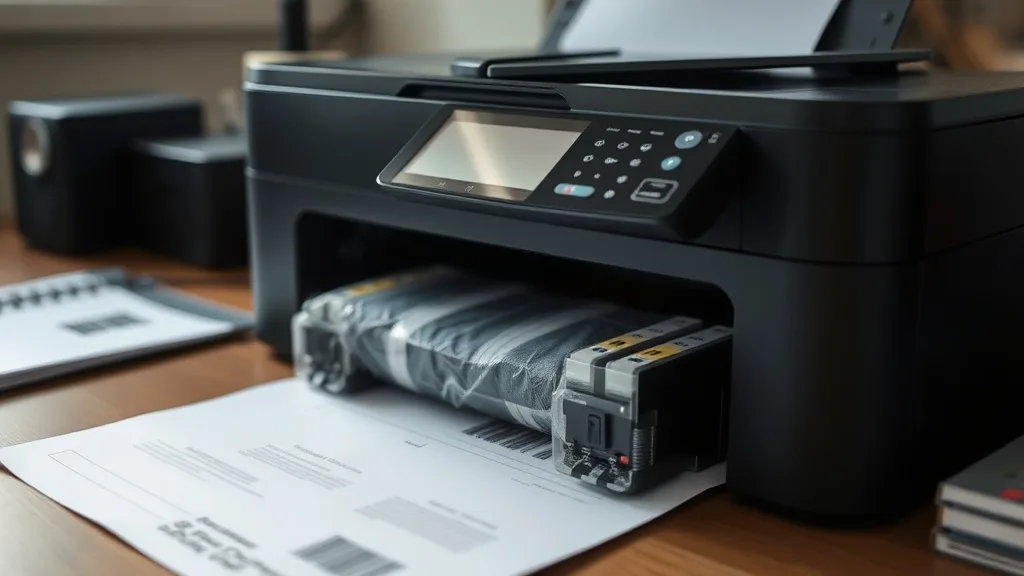
Faded prints from compatible ink cartridges can be frustrating. You bought a more affordable compatible or third-party cartridge to cut costs, only to find your documents and photos coming out lighter or patchy compared to brand-name counterparts. This drop in print quality could stem from a variety of factors unique to compatible cartridges, including ink formulation differences, printer chip communication, and cartridge handling. The good news? With methodical troubleshooting, you can often restore solid print output without reverting to expensive OEM replacements.
What Causes Faded Prints From Compatible Ink Cartridges?
Compatible cartridges are made by third-party manufacturers and usually cost significantly less than brand-name ones. However, their ink formulations, cartridge construction, and electronics can vary widely, potentially leading to:
- Ink formulation issues: Compatible inks might be less saturated or have different dye/pigment chemistries, producing lighter prints.
- Incomplete cartridge recognition: Printer chip lockouts or firmware may limit ink flow or cartridge identification, signaling lower ink levels prematurely.
- Air bubbles or clogged nozzles: Handling or shipping can introduce air gaps or cause partial clogs in print nozzles.
- Cartridge seating or installation problems: Improper seating can disrupt ink delivery or chip connection.
- Printer settings and driver conflicts: Color profiles and black/white mode should be checked.
- Printer hardware degradation: Especially if your printer is older or rarely used.
Understanding these causes helps you systematically troubleshoot faded print issues.
See also: Top Compatible Ink Brands for High-Quality Photo Printing
How Compatible Ink Cartridge Chips and Firmware Affect Print Quality
Phone cases - Sponsored - 15% off first order
Phone Case Gift - They pick the model · 2 minutes Code FIRST15GIFTMany modern printers use microchips on cartridges to monitor ink levels and verify authenticity. Third-party manufacturers typically include compatible chips, but these can have:
- Firmware mismatch: The chip may not properly communicate ink levels, leading the printer to reduce quality to conserve supposed ink.
- Firmware updates by printer makers: Updates may block third-party chips or cause intermittent recognition.
- Reset or counterfeit detection: Printers sometimes restrict or alter print quality from non-OEM cartridges.
This hardware and software interplay is a key variable in faded print issues with compatibles.
When To Use Compatible Ink and How to Minimize Print Quality Problems
Compatible cartridges are attractive primarily for cost savings. Use them when:
- Printing volume is high and OEM replacement costs are prohibitive.
- You want acceptable rather than photo-lab quality prints.
- Your printer model is known to work reliably with third-party cartridges.
To minimize print fade when using compatibles:
- Buy from reputable sellers with good return/refund policies.
- Select compatible cartridges tested for your printer model.
- Replace cartridges as soon as you notice print degradation.
- Update printer firmware cautiously; read compatibility forums.
- Store cartridges properly before installation; avoid exposure to air or extreme temperatures.
- Use your printer regularly to prevent ink settling or clogging.
Troubleshooting Steps: Fixing Faded Prints From Compatible Ink Cartridges
Phone cases - Sponsored - 15% off first order
Titan Case - Precision fit · 2,000+ designs Code FIRST15TITFollow this structured approach before deciding to switch back to OEM cartridges.
1. Check Printer Settings and Print Quality Options
- Verify the print mode is not set to draft or grayscale unless intended.
- Select “Best” or “High Quality” print settings in the driver.
- Check color management settings, ensure they’re appropriate for general color prints.
- Try printing test pages directly from the printer interface or software.
2. Perform a Nozzle Check and Print Head Cleaning
- Use the printer’s built-in maintenance tools to perform a test nozzle check.
- Run print head cleaning cycles if test pages show gaps or light streaks.
- Avoid excessive cleaning cycles as these consume significant ink and can damage heads over time.
- After cleaning, print another test page.
3. Reseat or Replace the Cartridge
- Remove and reinstall the compatible cartridge, ensuring it clicks securely into place.
- Inspect cartridge contacts and printer contacts for dirt or debris; clean gently with a lint-free cloth.
- Try a different compatible cartridge or a new OEM cartridge if available. Compare print quality.
4. Inspect Cartridge Expiry and Storage Conditions
- Check the manufacture or expiry date on the cartridge packaging if available.
- Ensure cartridges were stored properly before purchase — prolonged exposure to heat or drying can degrade ink.
5. Update or Roll Back Printer Firmware
- Check your printer manufacturer’s site for firmware updates that might improve third-party cartridge compatibility.
- If faded print issues started after a firmware update, consider rolling back if supported.
6. Reset the Printer
- Power off the printer, unplug for a few minutes, then restart.
- Some models have a reset or cleaning mode that can clear memory glitches affecting print quality.
7. Monitor Ink Levels and Chip Communication
- If your printer reports “low ink” immediately after installation, it may be misreading the chip.
- Some compatible cartridges include chip resetters or instructions to bypass these errors.
- Consider reinitializing or resetting chip data if printable and if instructions exist for your model.
OEM vs Compatible Ink: Cost, Yield, and Reliability Comparison
| Feature | Brand-Name Cartridge | Compatible Cartridge | Notes |
|---|---|---|---|
| Cost (per cartridge) | Higher (often 2-4x compatible) | Lower (up to 70% less) | Significant upfront savings with compatibles |
| Ink formulation | Proprietary, high-quality pigment | Variable, may be dye or pigment-based | OEM inks usually last longer and resist fading |
| Page yield | Published yields reliable | Yields can vary, sometimes higher | Check cartridges for verified yield data |
| Chip & firmware compatibility | Perfect OEM match | May suffer from firmware lockouts or errors | Firmware updates can break compatibility |
| Print quality | Consistently sharp, rich colors | Sometimes lighter or inconsistent | Quality varies widely among compatible brands |
| Reliability and leakage risk | Low risk, tested | Varies; some risk of leaks or damage | Purchase from reputable sellers to reduce risk |
| Warranty coverage | Manufacturer support included | Varies by seller, often limited | OEM cartridges linked to printer warranty |
Choosing compatible cartridges entails a trade-off: upfront savings for potential inconsistencies and occasional quality challenges.
Common Pitfalls When Using Compatible Ink Cartridges
Phone cases - Sponsored - 15% off first order
Phone Cases For Charity - Every case supports a cause Code GIVE10- Ignoring firmware updates: Automatic updates can break compatible cartridge recognition, causing faded prints or refusal to print.
- Using low-quality or counterfeit compatibles: Poor manufacturing can lead to clogged nozzles or ink that fades rapidly.
- Not performing routine maintenance: Compatible inks may dry faster or clog heads if printers are infrequently used.
- Relying on chip reset hacks that void warranties: These can limit manufacturer support or cause printer malfunctions.
- Expecting OEM print results every time: Some margin of quality loss is typical; adjusting expectations is realistic.
Summary
Faded prints from compatible ink cartridges typically result from a combination of ink chemistry differences, chip and firmware compatibility issues, cartridge installation errors, or printer settings. Troubleshooting involves checking print settings, cleaning print heads, reseating or replacing cartridges, monitoring ink level recognition, and maintaining printer firmware with care.
By methodically addressing each factor and choosing high-quality compatible cartridges with solid return policies, printer owners can enjoy substantial cost savings while producing satisfactory print quality — avoiding the high costs and frustration of OEM cartridges without settling for poor faded output.
Frequently Asked Questions
Q: Why are compatible cartridges often lighter in color than OEM ones?
A: Compatible cartridges may use different ink dyes or pigments that are less saturated or have different formulations, resulting in a lighter print appearance.
Q: Will printer firmware updates affect my compatible cartridges?
A: Yes, firmware updates often include measures to restrict third-party cartridges, which can cause faded prints or cartridge recognition errors after updating.
Q: Can cleaning the print head fix faded prints?
A: Yes, running the printer’s built-in nozzle check and cleaning cycles can often clear partial clogs or air bubbles that cause faded or patchy prints. However, excessive cleaning wastes ink and should be used judiciously.
Top Picks
Watchdog picks
- B0G1N9SX2M
- B08VF3XRQ8
- B0F2478Q95
- AYMSous 5-Pack Universal Ink Refill Kit for All HP Canon Epsn Brother Printers C
- B0014D3N0Q
- YIHUA 939D+ Digital Soldering Station, 75W Equivalent with Precision Heat Contro
- Utopia Bedding Bed Pillows for Sleeping Queen Size (Blue), Set of 6, Cooling Hot
- Soldering Iron Kit, 60W LED Display Digital Solder Pen, 5 Replaceable Tips, 21-i
Products in this guide
- HP DeskJet 2755 Wireless All-in-One Printer, Mobile Print, Scan & Copy, Instant Ink Ready, Works with Alexa (3XV17A)
- Inkjet Refill Kit Pro — Compatible with HP, Canon, Epson, and Lexmark Cartridges
- HP DeskJet 2755 All-in-One Wireless Printer Scanner Copier Instant Ink Ready Mobile Print Black 7.5ppm Color 5.5ppm Wifi
- HP (Refurbished) OfficeJet Pro 9015e All-in-One Wireless Color Printer for Home Office, Compatible with Alexa (1G5L3A) (