
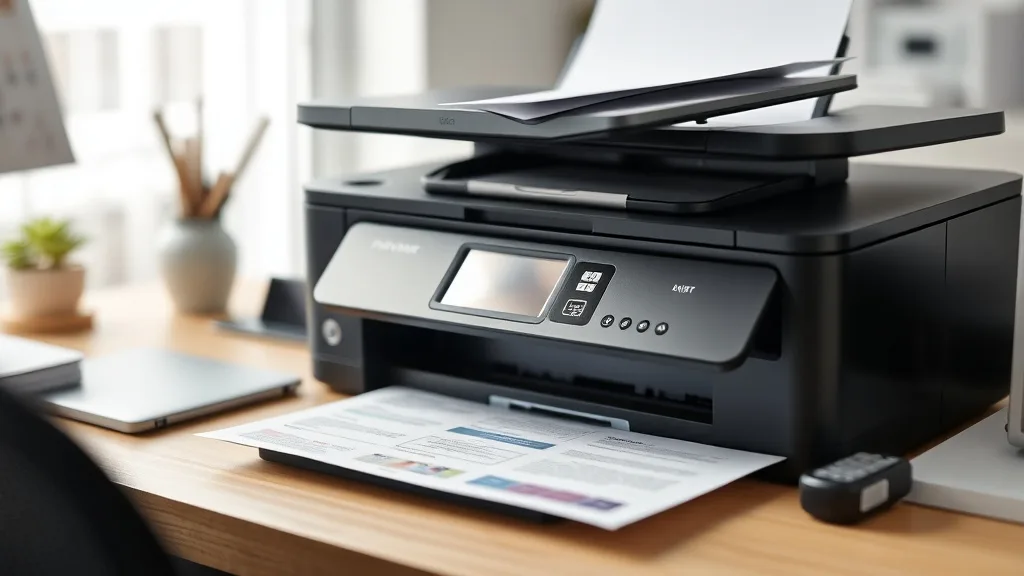
Troubleshooting Common Print Quality Issues with Compatible Cartridges
If you’ve switched to compatible cartridges to save on pricey brand-name replacements but are now facing frustrating print quality issues, you’re not alone. Compatible cartridges can deliver great value but sometimes cause streaks, faded prints, smudges, or error messages that disrupt your workflow. Understanding why these problems happen and how to fix them will help you maximize savings without sacrificing print quality.
What Are Compatible Cartridges?
Compatible cartridges are third-party manufactured cartridges designed to work with OEM (original equipment manufacturer) printers but sold at a lower price. Unlike refilled OEM cartridges, which reuse original components, compatibles are new cartridges built to be an affordable alternative.
Because they are produced by independent manufacturers, compatible cartridges often come at a fraction of the cost of brand-name ones, offering attractive cost-per-page savings. However, differences in chip programming, ink formulation, and build quality can sometimes lead to print issues or printer error messages.
How Compatible Cartridges Work with Your Printer
Phone cases - Sponsored - 15% off first order
Phone Case Gift - They pick the model · 2 minutes Code FIRST15GIFTPrinters use smart chips on cartridges to communicate with the device, monitor ink levels, and calibrate print quality. OEM cartridges have chips finely tuned to the printer model’s firmware, ensuring reliable recognition and accurate ink delivery.
Compatible cartridges must reverse engineer or replicate these chips to work. Some do this successfully, while others may suffer from partial compatibility, causing:
- Printer not recognizing the cartridge
- Incorrect ink level readings
- Printhead misfiring
- Poor ink flow or inconsistent color rendering
When To Use Compatible Cartridges
You should consider compatible cartridges primarily if:
- You print regularly and want to reduce your cost-per-page substantially
- You accept some risk of minor print quality variation or occasional troubleshooting instead of paying OEM prices
- You don’t rely on color-critical prints for professional photography or design proofing (where OEM cartridges excel)
With basic office documents, reports, and home printing, compatibles can deliver excellent value if you pick trusted vendors and understand how to troubleshoot issues.
Common Print Quality Issues and How to Troubleshoot Them
Phone cases - Sponsored - 15% off first order
Titan Case - Precision fit · 2,000+ designs Code FIRST15TITBelow are the most frequent problems people face using compatible cartridges, along with practical solutions.
1. Streaks, Lines, or Missing Print Areas
Cause:
- Clogged nozzles or dried ink
- Poor ink formulation or inconsistent pigment particle size
- Printhead misalignment
Fixes:
- Run the printer’s built-in nozzle cleaning utility (usually found in printer software or settings) 2-3 times
- Remove and gently clean the cartridge’s printhead with a lint-free cloth dampened with distilled water or isopropyl alcohol (check your printer manual)
- Reseat the cartridge securely, ensuring no debris or damage exists
- If printing remains streaky, try installing a different compatible cartridge from a more reputable vendor
2. Faded or Light Prints
Cause:
- Ink running low or cartridge sensor misreading ink level
- Incompatible ink formulation yields lower pigment density
- Printing in draft or economy mode
Fixes:
- Replace or reset cartridge to refresh ink levels (refer to your printer’s cartridge reset instructions or use software tools)
- Switch print settings from draft to standard or high quality
- Use compatible cartridges specified to meet or exceed OEM ink density
- Adjust printer driver color saturation or brightness settings
3. Colors Off-Balance or Inaccurate
Cause:
- Incompatible or substandard color formulas in cartridges
- Printer driver or color profile mismatch
- Cross-contamination if refilling cartridges incorrectly
Fixes:
- Use compatible cartridges designed for your exact printer model
- Ensure correct printer driver and ICC profiles are installed for color accuracy
- Avoid mixing OEM and compatible cartridges in the same print cycle
- Print a color calibration page and adjust settings accordingly
4. Smudging or Ink Smearing
Cause:
- Ink drying too slowly due to incorrect ink formula
- Paper type mismatch or low-quality paper
- Excess ink deposition from heavy printing patterns
Fixes:
- Use compatible cartridges with fast-drying ink formulations
- Select the proper paper type in printer settings (e.g., glossy, matte, plain)
- Let the page dry before handling if using heavier coverage
- Avoid printing with draft mode if it causes excess ink
5. Printer Error Messages or Cartridge Not Recognized
Cause:
- Chip incompatibility or firmware update blockage
- Poor electrical contact between cartridge and printer slots
- Using cartridges not designed for specific printer firmware versions
Fixes:
- Clean cartridge contacts with a dry microfiber cloth
- Check for printer firmware updates that may have blocked compatibilities (avoid auto updates if problematic)
- Purchase compatible cartridges with updated chip technology matching your printer’s firmware
- As a last resort, reinstall cartridge or try OEM cartridge to isolate the issue
Comparison Table: Typical Print Quality Trade-Offs Between OEM and Compatible Cartridges
| Feature | OEM Cartridges | Compatible Cartridges |
|---|---|---|
| Cost per Page | High, premium price | Lower, significant savings |
| Printhead and Ink Quality | Factory calibrated for highest quality | Varies by manufacturer; some perform well, others less consistent |
| Chip and Firmware Support | Full compatibility, minimal error risk | May trigger errors with updates |
| Color Accuracy | Highly reliable for color-critical prints | Usually acceptable for general use |
| Risk of Printer Damage | Very low | Small risk if cartridge quality is poor or ink formulation harsh |
| Yield Consistency | Consistent stated yield | Can vary widely, sometimes overstated |
| Troubleshooting Complexity | Minimal issues | Requires vigilance and some manual fixes |
Tips for Minimizing Print Quality Problems
Phone cases - Sponsored - 15% off first order
Phone Cases For Charity - Every case supports a cause Code GIVE10- Buy compatible cartridges from reputable sellers with positive reviews and transparent product information.
- Avoid mixing OEM and third-party cartridges in the same device — pick one type for better consistency.
- Watch for printer firmware updates that may block compatibles; consider disabling auto updates if needed.
- Store cartridges sealed and at recommended temperatures to prevent ink drying or clogging.
- Follow your printer’s maintenance routines and run cleaning cycles regularly to keep printheads clear.
Understanding the Balance: OEM vs Compatible Reliability Trade-Off
Compatible cartridges unquestionably provide big cost savings but carry some risk of print quality variations and error messages. OEM cartridges offer peace of mind, consistent results, and fewer troubleshooting headaches at a much higher price.
By educating yourself on the technical causes behind common print issues and using the right maintenance practices, you can reduce compatibility headaches and enjoy much lower running costs with third-party cartridges.
Frequently Asked Questions
Q: Will using compatible cartridges void my printer warranty?
A: Most printer manufacturers state that using third-party cartridges doesn’t void warranty unless damage is directly caused by the cartridge. Keep receipts and document your cartridge source to assist support if needed.
Q: Why does my printer show ‘cartridge not recognized’ after a firmware update?
A: Firmware updates can block non-OEM chips to enforce brand loyalty. Check for updated compatible cartridges with new chip versions or avoid automatic updates if print continuity matters.
Q: How many cleaning cycles should I run to fix streaks before replacing a cartridge?
A: Running 2-3 cleaning cycles is typically sufficient. More cleaning cycles waste ink and may worsen print quality due to over-cleaning. If issues persist, it’s often best to replace or reseat the cartridge.
By understanding these print quality problem causes and fixes when using compatible cartridges, you can save money without sacrificing too much performance or reliability. With trial, error, and the right vendor, compatibles can be a practical solution for budget-conscious printer owners.
See also: Troubleshooting Printer Toner Smudging and Streaking Problems
Top Picks
Watchdog picks
- AOLIBE MLT-D111S Toner Cartridge High Yield Compatible for Samsung 111S MLT111S
- B0GYRCQLFV
- 67XL 67 XL 6055e 2755e 2800e 2855e 6000 Ink Cartridges Black/Color Combo Pack Co
- B07C11YW88
- Niagara Sleep Solution Ultra Soft Queen Size Mattress Topper - Rayon Derived fro
- B001ET76H8
- Extra Deep Queen Sheet Set - 6 Piece Breathable and Cooling Sheets - Hotel Luxur
- B00FFJ0R1Q
Products in this guide
- Inkjet Refill Kit Pro — Compatible with HP, Canon, Epson, and Lexmark Cartridges
- Canon PG-245 / CL-246 Genuine Ink Value Pack (2 Cartridges), Compatible with iP2820, MG2420/2924/2920/3020/2522/2525, MX
- Canon PG-245 XL / CL-246 XL Genuine Ink Value Pack (2 Cartridges), Compatible with iP2820, MG2420/2924/2920/3020/2522/25
- HP DeskJet 2755 Wireless All-in-One Printer, Mobile Print, Scan & Copy, Instant Ink Ready, Works with Alexa (3XV17A)