
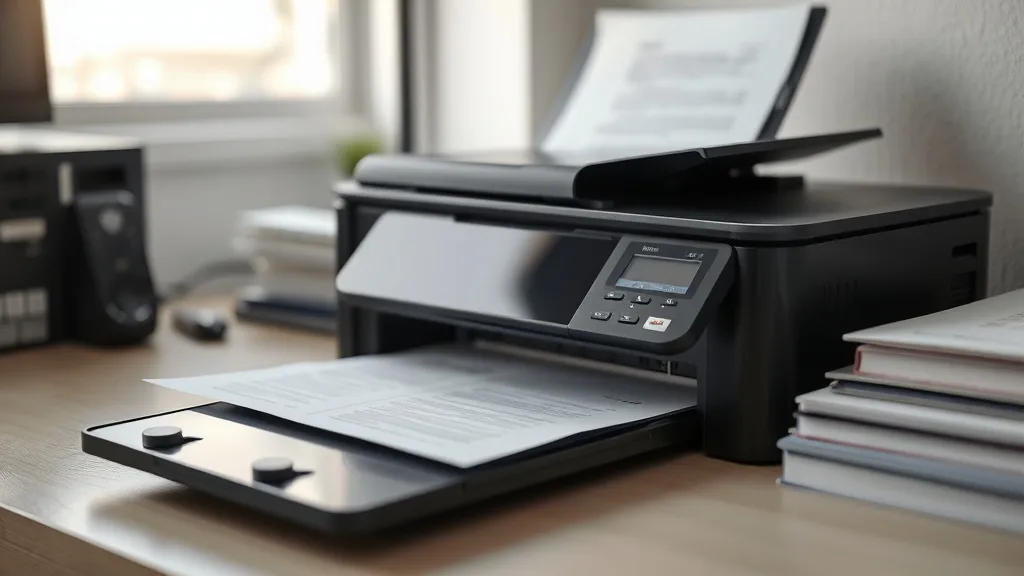
Dealing with Ink Smudging Issues Using Compatible Ink Solutions
If you own a printer and rely on compatible ink cartridges to save money, you’ve likely encountered the frustrating problem of ink smudging. Unlike brand-name inks optimized for their printers, compatible inks may sometimes cause smears, slow drying times, or blurred prints—issues that defeat the purpose of affordable alternatives. This article unpacks why ink smudging happens with compatible inks, how to minimize or fix it, and when selecting a compatible cartridge is a smart choice despite this risk.
What Is Ink Smudging and Why Does It Happen with Compatible Ink?
Ink smudging occurs when printed ink stays wet or loosely fixed on paper, allowing it to smear under light contact or fail to dry completely before handling. While brand-name cartridges use carefully formulated ink and chip technology to balance drying speed, vibrancy, and paper compatibility, third-party inks often try to mimic the output at a fraction of the cost. This cost-cutting or substitution of ingredients can affect:
- Drying Time: Compatible inks may take longer to dry on certain papers.
- Ink Chemistry: Different pigment and binder composition can reduce adhesion.
- Chip and Printer Communication: Some compatible chips can limit printer calibration and ink usage, leading to inconsistent print layers.
- Paper Type Sensitivity: Cheaper compatible inks may not work well on glossy or coated media.
The top consequence is smudging, where fresh prints are vulnerable to blotching from touch or stacking. This creates wasted pages and lowered productivity. Yet not all compatible cartridges cause smudges, and some user steps can mitigate or eliminate this issue.
See also: The Environmental Impact of Using Compatible Ink Cartridges
How Compatible Ink Chemistry Affects Smudging
Phone cases - Sponsored - 15% off first order
Phone Case Gift - They pick the model · 2 minutes Code FIRST15GIFTCompatible ink makers must balance pigment concentration with drying agents and solvents for quick absorption and consistent coverage. Since exact OEM formulas are proprietary, third-party inks vary widely:
- Dye-based inks tend to saturate paper fibers deeper and dry faster but can be prone to running if exposed to liquid.
- Pigment-based inks offer richer color and water resistance but typically settle on the paper surface, taking longer to dry.
- Additives such as polymers improve fixation but may be absent or insufficient in budget formulations.
The weaker binding or slower drying of some compatible inks is a main contributor to smudging risks. Furthermore, printers use firmware that coordinates ink ejection frequency and heating (in thermal printers) according to OEM ink properties. Compatible cartridges without proper chip communication can misalign these parameters, worsening smudging.
When to Consider Compatible Ink Despite Smudging Risks
If you’re printing high volumes of everyday documents or drafts, compatible cartridges remain a practical money-saving choice. Consider these factors:
- Cost-per-Page (CPP): Compatible refill packs often cut cartridge costs by 50-80%, drastically lowering CPP.
- Yield vs. Price: If yields are comparable to OEM, slight increases in smudging risk may be acceptable.
- Non-Critical Prints: Internal memos, notes, and temporary prints can tolerate minor smudges.
- Testing Period: Some compatible ink brands offer sample cartridges to test in your printer risk-free.
When printing important or professional materials (e.g., contracts, marketing brochures), brand-name inks still offer unmatched reliability and finish.
Steps to Reduce Ink Smudging with Compatible Ink Cartridges
Phone cases - Sponsored - 15% off first order
Titan Case - Precision fit · 2,000+ designs Code FIRST15TITHere’s a practical, step-by-step approach to minimizing smudges:
-
Choose Compatible Ink with Proven Reviews on Your Printer Model
Look for user feedback and third-party testing that specifically mentions minimal smudging and high reliability. -
Use Recommended Paper Types
Compatible inks dry faster on plain, uncoated paper. Avoid glossy, photo, or other coated stock unless specified by the ink maker. -
Adjust Printer Settings
- Set print quality to ‘Draft’ or ‘Standard’ instead of ‘Best’ to reduce ink volume.
- Disable any ‘fast-dry’ or ‘photo’ modes that increase ink saturation.
- Use plain paper settings if available.
-
Allow More Drying Time Before Handling
After printing, leave stacks to air-dry for several minutes. Avoid stacking immediately. -
Ensure Printer Firmware is Updated, but Avoid Unsupported Chip Lockouts
Some printer firmware updates block compatible cartridge chips, forcing OEM use. Research your printer’s compatibility status before accepting updates. -
Clean Print Heads and Perform Maintenance
Ink flow inconsistency can increase smudging. Regular cleaning ensures smooth ink application. -
Experiment with Drying Aids
Use blotter paper, silica gel packets nearby for humidity control, or a fan to speed up drying.
Trade-Offs: Compatible Ink vs Brand-Name Ink for Smudging
| Feature | Compatible Ink Cartridge | Brand-Name (OEM) Cartridge |
|---|---|---|
| Cost per Page (CPP) | 50-80% lower than OEM | Higher, typically 2-4x compatible CPP |
| Ink Chemistry | Variable; may use different pigments and solvents | Optimized proprietary formulas with stable drying |
| Drying Speed | Often slower, higher risk of smudging | Generally fast, less smudging |
| Print Quality | Good to variable, often adequate for text/color | High-quality, consistent colors and sharpness |
| Printer Firmware Compatibility | May require chip resets; some updates block use | Seamless integration, fewer compatibility issues |
| Yield (Pages per Cartridge) | Can match OEM if high-quality refill | Guaranteed yield per OEM specs |
| Reliability | Risk of clogging or inconsistent flow | Generally reliable and predictable |
| When Ideal to Use | Cost-conscious users printing non-critical docs | Professional prints, color accuracy needed |
Common Pitfalls When Using Compatible Ink
Phone cases - Sponsored - 15% off first order
Phone Cases For Charity - Every case supports a cause Code GIVE10- Ignoring Paper Compatibility: Using coated papers designed for OEM inks can exacerbate smudging with compatibles.
- Using Low-Quality Third-Party Vendors: Cheap ink suppliers may sell poorly formulated cartridges.
- Firmware Updates Without Research: Printer firmware can brick compatible cartridges or disable chip counters.
- Overlooking Printer Maintenance: Skipping head cleaning can cause ink over-deposition, worsening smudges.
- Misunderstanding Cost Savings: Savings vanish if you must print multiple repeats or spend on cleanup.
Practical Tips for Printer Owners
- Always test new compatible inks on sample prints.
- Keep multiple compatible ink brands in rotation to compare drying and smudging.
- Retain one OEM cartridge as a backup to troubleshoot print quality issues.
- Store your printer in a dry, dust-free environment to prevent ink drying issues.
- Consult user forums for your specific printer model to identify trusted compatible brands.
By understanding the trade-offs and applying these steps, you can confidently use compatible inks while minimizing ink smudging problems.
Frequently Asked Questions
Q: Can smudging from compatible ink damage my printer?
A: Generally, no. Smudging affects print output quality but doesn’t harm printer hardware. However, clogged heads from poor inks may require maintenance.
Q: Are all compatible inks prone to smudging?
A: No, it depends on ink formulation and printer compatibility, but smudging is more common compared to OEM inks.
Q: How do I know if a compatible cartridge will work well with my printer?
A: Check for compatibility lists from the cartridge supplier, printer user forums, and review sites focusing on your exact printer model and ink brand.
Top Picks
Watchdog picks
- HP DeskJet 2755 Wireless All-in-One Printer, Mobile Print, Scan & Copy, Instant
- Extra Deep Queen Sheet Set - 6 Piece Breathable and Cooling Sheets - Hotel Luxur
- Hakko T18S3P Tip for Fx-888 Station, 5.2mm
- B004QM8SLG
- B0G1N9SX2M
- B0GRGQR634
- B00NQ1CLTI
- AYMSous 5-Pack Universal Ink Refill Kit for All HP Canon Epsn Brother Printers C
Products in this guide
- HP DeskJet 2755 Wireless All-in-One Printer, Mobile Print, Scan & Copy, Instant Ink Ready, Works with Alexa (3XV17A)
- HP 134A Black Toner Cartridge Printers | Works with LaserJet M209 Series; LaserJet MFP M234 Series | W1340A
- HP (Refurbished) OfficeJet Pro 9015e All-in-One Wireless Color Printer for Home Office, Compatible with Alexa (1G5L3A) (
- Epson EcoTank ET-2800 Wireless Color All-in-One Cartridge-Free Ink Supertank Printer with Scan and Copy for Home Use, Wh