
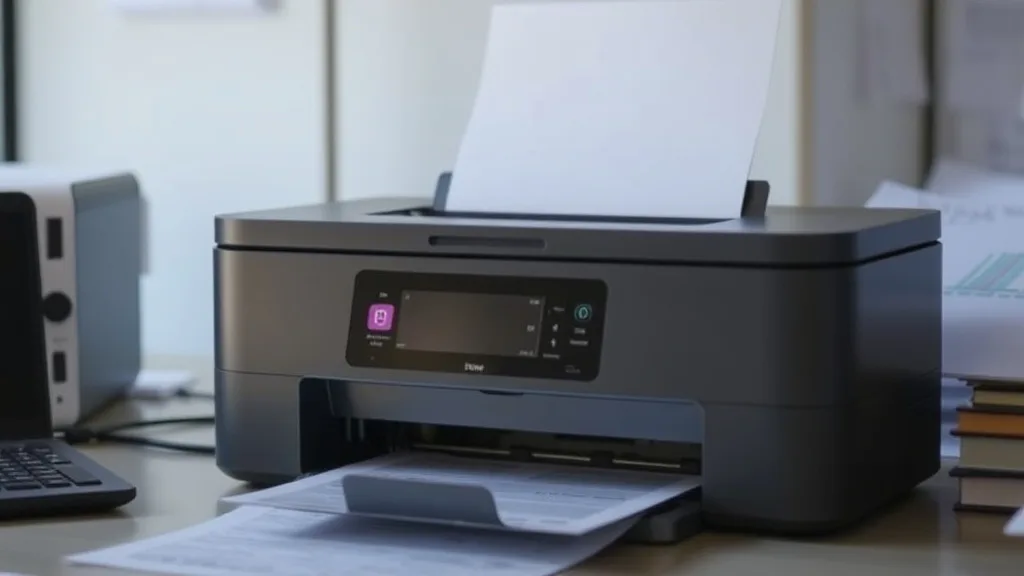
Many printer owners get stuck when their device suddenly refuses to recognize new or existing ink cartridges. This error not only halts your printing but also triggers frustrating warnings on your printer or computer screen. Troubleshooting “Printer Ink Not Recognized” errors requires a clear step-by-step approach to determine whether the issue lies with the cartridge, the printer, or software factors — and to address it without throwing money at expensive replacements unnecessarily.
What Causes Printer Ink Not Recognized Errors?
Before diving into solutions, it’s essential to understand the common causes behind ink cartridge recognition problems:
- Chip or Contact Issues: Ink cartridges have chips or contacts that communicate with the printer. If they’re dirty, misaligned, or damaged, the printer won’t recognize the cartridge.
- Counterfeit or Third-Party Cartridge Compatibility: Some printers have firmware that blocks third-party or refilled cartridges, triggering errors.
- Firmware Updates or Lockouts: Printer manufacturers occasionally release updates that inadvertently or intentionally block some compatible cartridges.
- Improper Installation: Cartridges not seated correctly or removed and reinstalled improperly can cause communication issues.
- Expired or Empty Cartridges: Some printers refuse to recognize cartridges detected as empty or expired.
- Printer Hardware Malfunction: Sensor faults, dirt inside the cartridge slot, or mechanical failures can cause recognition failures.
See also: Stepwise Troubleshooting for Printer Ink Cartridge Recognition Errors
Step-by-Step Troubleshooting Guide
Phone cases - Sponsored - 15% off first order
Phone Case Gift - They pick the model · 2 minutes Code FIRST15GIFTUse this sequence to systematically identify and solve the problem:
1. Power Cycle Your Printer
- Turn off the printer and unplug it from power for at least one minute.
- Plug it back in and turn it on.
- This simple reset often clears temporary errors or glitches.
2. Inspect Cartridge Compatibility
- Ensure you are using cartridges specifically listed as compatible with your printer model.
- Check if recent printer firmware updates have introduced cartridge compatibility lockouts (manufacturers sometimes patch against third-party cartridges).
- If using third-party or refilled cartridges, temporarily try an OEM cartridge to confirm if the problem is compatibility.
3. Remove and Reinstall the Cartridge Properly
- Turn off the printer.
- Open the ink cartridge access panel.
- Carefully remove the cartridge.
- Examine it for plastic tape or protective covers that may still be on the chip or nozzles.
- Clean cartridge contacts gently with a lint-free cloth and isopropyl alcohol.
- Flush the cartridge slot contacts gently with a dry swab if dirty.
- Reinstall the cartridge firmly until it clicks in place.
- Close the panel and power on the printer.
4. Check for Physical Damage or Expiry
- Look for corrosion or scratches on the chip or contacts.
- Verify that the cartridge is not past its expiration date (usually printed on the cartridge).
- An expired or damaged chip can cause recognition errors.
5. Look into Firmware and Software Updates
- Visit the printer manufacturer’s website.
- Check for firmware updates for your model.
- If you recently updated the firmware and the errors started afterward, check user forums for known compatibility issues.
- Some firmware versions can be rolled back, or incur workarounds shared by the community.
6. Reset Printer Settings (If Applicable)
- Some printer models allow you to reset to factory default settings via menu options or button presses.
- Resetting can clear corrupted cache or error states causing recognition issues.
7. Try Cleaning the Printer Internally
- Dust, ink residue, or paper fibers inside the cartridge slot may block communication.
- Use a soft brush and compressed air to clean the ink cartridge compartment.
- Be gentle to avoid damaging sensitive sensors.
8. Test With Different Cartridges
- If possible, test with a brand-new OEM cartridge.
- Then test a different compatible or third-party cartridge.
- This helps isolate whether the fault is with the cartridge or the printer.
9. Consult Printer Error Logs or Diagnostic Mode
- Some printers offer diagnostic screens or print test pages with status codes.
- Use the printer’s software on your computer to access error logs that might provide detailed error codes.
10. Contact Support or Consider Replacement
- If steps above do not resolve the issue, contact printer support.
- Provide them with model details, error messages, and troubleshooting steps taken.
- Sometimes hardware repair or replacement is the only option.
Comparing OEM vs Third-Party Cartridges in Recognition Reliability
One major source of ink not recognized errors is the cartridge type. Here is a direct comparison of some key traits influencing recognition success:
| Feature | OEM Cartridge | Third-Party / Compatible Cartridge |
|---|---|---|
| Chip/Contact Accuracy | Perfectly matched with printer firmware | Varies; can be less precise or emulate OEM |
| Firmware Lockout Risk | None, fully supported | Higher risk, especially after firmware updates |
| Cost | High | Significantly lower |
| Reliability in Recognition | Usually 99% recognition success | Can cause frequent errors in some printers |
| Warranty Impact | No impact | Can void printer warranty in some cases |
| Environmental Impact | Less reuse, single-use cartridges | Often refillable or recycled options |
Practical Advice
- For critical use, OEM cartridges minimize risk of non-recognition and ensure full printer support.
- For cost-sensitive users willing to troubleshoot and accept occasional incompatibilities, third-party cartridges are a significant money saver.
- Always check for updated compatibility lists when using third-party kits.
Common Pitfalls to Avoid When Troubleshooting Ink Not Recognized Errors
Phone cases - Sponsored - 15% off first order
Titan Case - Precision fit · 2,000+ designs Code FIRST15TIT- Ignoring Firmware Updates: Firmware often causes recognition changes; ignoring update notes leads to confusion.
- Forcing Cartridges: Forcing a cartridge into place can damage contacts and worsen recognition issues.
- Using Expired or Empty Cartridges: Installing cartridges that are empty or past expiration leads to failed recognition.
- Neglecting to Clean Contacts: Dirty or oily contacts are a common but often overlooked cause.
- Assuming All Third-Party Ink Works Equally: Quality between compatible cartridges varies widely; pick reputable vendors.
Frequently Asked Questions
Q: Can I bypass the ‘Ink Not Recognized’ error and keep printing?
A: Some users find workarounds such as removing and reinstalling cartridges repeatedly or resetting the printer, but these are temporary fixes. Long-term use without a recognized cartridge is unreliable.
Q: Why does the printer suddenly stop recognizing cartridges that were working before?
A: Firmware updates or chip degradation can cause cartridges that previously worked to fail recognition. Also, physical damage or dirt accumulation happens over time.
Q: Is it safe to use third-party or refilled cartridges considering recognition errors?
A: It depends on the printer model and cartridge quality. Many third-party cartridges work well but carry some risk of non-recognition, especially after firmware updates designed to block them. Always buy from trusted sellers with a return policy.
Top Picks
Phone cases - Sponsored - 15% off first order
Phone Cases For Charity - Every case supports a cause Code GIVE10Watchdog picks
- E-Z Ink Remanufactured Ink Cartridge Replacement for 252XL Combo Pack for Epson
- B01NBB1J9U
- HP DeskJet 2755 Wireless All-in-One Printer, Mobile Print, Scan & Copy, Instant
- B0FLXG5Z7Q
- B0C1ZF94GW
- Epson EcoTank ET-2980 Wireless All-in-One Color Supertank Printer with Refillabl
- YIHUA 939D+ Digital Soldering Station, 75W Equivalent with Precision Heat Contro
- B07P5Y5QHG
Products in this guide
- HP DeskJet 2755 Wireless All-in-One Printer, Mobile Print, Scan & Copy, Instant Ink Ready, Works with Alexa (3XV17A)
- HP (Refurbished) OfficeJet Pro 9015e All-in-One Wireless Color Printer for Home Office, Compatible with Alexa (1G5L3A) (
- Epson EcoTank ET-2800 Wireless Color All-in-One Cartridge-Free Ink Supertank Printer with Scan and Copy for Home Use, Wh
- Epson EcoTank ET-2800 Wireless Color All-in-One Cartridge-Free Ink Supertank Printer with Scan and Copy for Home Use, Bl