
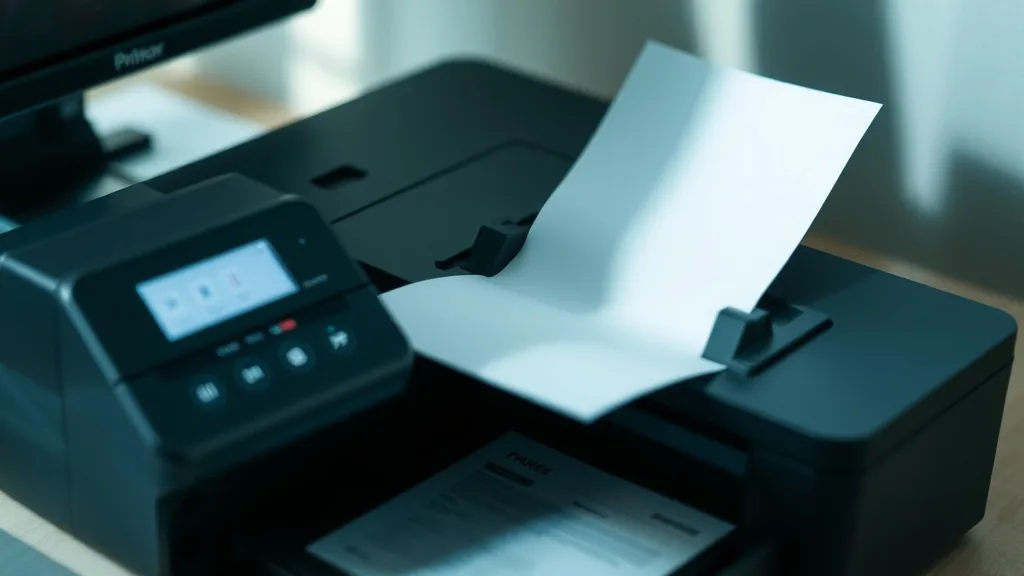
If your printer frequently locks up with paper jams and you’ve traced the problem to the toner cartridge, you’re not alone. Printer paper jams caused by toner cartridge issues are a common frustration, especially when you’re trying to avoid costly service calls or never-ending cartridge swaps. The good news is that many such jams are fixable with straightforward steps and a better understanding of toner cartridge mechanics.
Understanding How Toner Cartridges Can Cause Paper Jams
Toner cartridges are not just ink containers; they play a crucial role in the paper feed and print process. Unlike inkjet cartridges that spray liquid, laser printers use toner cartridges that contain powdered toner and components like the drum unit and rollers which directly contact the paper.
When a toner cartridge malfunctions or is improperly installed, it can disrupt paper movement inside the printer in one of several ways:
- Misaligned rollers or drum: Causes paper to skew or catch.
- Toner leakage: Leads to buildup of powder inside the feed path, making sheets stick.
- Worn or damaged parts: Roller surfaces that are no longer gripping paper correctly.
- Chip or sensor errors: Prevent the printer from recognizing the cartridge properly, sometimes causing misfeeds.
Understanding these mechanisms will help you troubleshoot jams more precisely.
See also: Troubleshooting Common Printer Ink Cartridge Errors Quickly
How to Fix Printer Paper Jams Caused by Toner Cartridge Issues: Step-by-Step
Phone cases - Sponsored - 15% off first order
Phone Case Gift - They pick the model · 2 minutes Code FIRST15GIFTResolving toner cartridge-related paper jams often involves a combination of cleaning, inspection, reinstallation, and sometimes replacement. Here is a structured approach:
1. Power Off and Access the Toner Cartridge Area Safely
Before starting any work:
- Turn off the printer and unplug it to avoid electrical damage or injury.
- Wait a few minutes for internal components to cool, especially if you recently printed large jobs.
Open the printer’s front or side panel to access toner cartridges and paper feed rollers.
2. Remove the Toner Cartridge Carefully
- Pull out the toner cartridge gently using manufacturer-recommended grip points.
- Avoid tipping or shaking the cartridge as toner powder can spill.
- Set the cartridge on a protected surface away from direct light.
3. Inspect the Cartridge and Internal Components
- Look for any visible damage to cartridges, such as cracks, broken tabs, or worn rollers.
- Check for toner spills or buildup on or around the cartridge.
- Examine the paper feed rollers and drum for toner residue or debris.
4. Clean the Cartridge and Internal Printer Parts
- Use a lint-free cloth to wipe the cartridge’s rollers and drum gently.
- If toner spills are evident, use a toner vacuum (specialized to avoid static) or a soft brush designed for printer cleaning.
- Avoid using canned air; it can blow toner into sensitive electronics.
5. Check the Chip and Sensor Contacts
Many toner cartridges have small chips or contacts that communicate with the printer for recognition and usage tracking.
- Ensure contacts are clean and free of toner dust.
- Gently wipe contacts with a dry, lint-free cloth.
6. Reinstall the Toner Cartridge Correctly
- Line up the cartridge rails or guides precisely.
- Insert the cartridge firmly until it clicks or seats fully.
- Improper seating is a common cause of feed issues.
7. Conduct a Test Print
- Close all printer access panels.
- Power on the printer and run a test print.
- Observe if the paper feeds smoothly or if jams persist.
8. Replace the Cartridge if Issues Continue
- If cleaning and reinstallation fail, try a different toner cartridge to determine if the fault lies with the cartridge.
- Consider using a brand-name cartridge if you have been using third-party or refilled cartridges, as some lower-cost options may have compatibility or quality issues.
Evaluating Cartridge Choices to Avoid Paper Jams
Choosing the right toner cartridge impacts reliability and cost-effectiveness. Here’s a comparison of brand-name vs third-party toner cartridges related to paper jam likelihood:
| Feature / Factor | Brand-Name Toner Cartridge | Third-Party / Compatible Cartridge |
|---|---|---|
| Cost per Cartridge | High | Lower |
| Page Yield | Verified by OEM specs, generally reliable | Varies widely, some offer high yields |
| Chip Compatibility | Guaranteed to work with printer firmware | May have chip compatibility issues causing errors or jams |
| Roller and Drum Quality | OEM quality with optimal tolerances | Quality varies, can have uneven rollers/drums leading to jams |
| Reliability & Jams | Less frequent paper jams due to tight quality control | Higher risk of jams if parts are out of spec |
| Warranty / Support | Usually supported under printer warranty | May void printer warranty or lack support |
| Environmental Impact | Often includes recycling programs | Varies, some encourage reuse/refill but with quality trade-offs |
When you’re dealing with persistent paper jams attributed to the toner cartridge, weighing the trade-offs between upfront savings and long-term reliability is critical. A lower initial cost third-party cartridge may generate savings on supplies but end up costing time and frustration from frequent jams or misfeeds.
Common Pitfalls When Troubleshooting Toner Cartridge-Related Paper Jams
Phone cases - Sponsored - 15% off first order
Titan Case - Precision fit · 2,000+ designs Code FIRST15TIT- Not removing the cartridge before clearing jams: Leaving the cartridge in while pulling paper out can damage rollers or drum.
- Ignoring toner leakage: Toner powder buildup causes feeding issues and poor print quality.
- Using canned air: This can push toner dust inside printer electronics, creating bigger problems.
- Improper cartridge installation: Skewed or loose cartridges almost always cause jams.
- Continuing to use worn cartridges: Old rollers lose grip, increasing the risk of jams.
- Repeated use of refilled cartridges without inspection: Poor refills and reused chips may fail to work properly.
When to Call Professional Repair
If you’ve gone through these steps and jams continue, the cause may be more serious hardware faults like:
- Broken internal feed rollers
- Faulty sensors
- Drum unit failure (especially if integrated with cartridge)
- Firmware or software errors
Professional servicing or OEM support should be sought in these cases.
Frequently Asked Questions
Phone cases - Sponsored - 15% off first order
Phone Cases For Charity - Every case supports a cause Code GIVE10Q: How do I know if the toner cartridge is causing the paper jam or something else?
A: Remove the cartridge and try manually feeding paper through the path. If the paper jams without the cartridge, the issue is likely mechanical. If jams happen only with the cartridge installed, it probably involves the cartridge rollers or drum.
Q: Can a third-party toner cartridge cause paper jams?
A: Yes, third-party cartridges may have inconsistent quality or chip incompatibility that can lead to jams. Choosing reputable third-party manufacturers and matching cartridges to your printer helps reduce this risk.
Q: Is it safe to shake a toner cartridge to redistribute toner when jammed?
A: Gently shaking a cartridge horizontally to redistribute toner inside is sometimes recommended, but always refer to your printer’s manual. Avoid tipping the cartridge or spilling toner powder.
Top Picks
Watchdog picks
- HP (Refurbished) OfficeJet Pro 9015e All-in-One Wireless Color Printer for Home
- Niagara Sleep Solution Ultra Soft Queen Size Mattress Topper - Rayon Derived fro
- myCartridge SUPRINT Remanufactured Replacement for Epson 702 Ink Cartridges 702X
- TN730 TN-730 Black Toner Cartridges 2 Pack Compatible TN730 Toner Cartridge Repl
- B0F2478Q95
- HP OfficeJet Pro 8125e Wireless All-in-One Color Inkjet Printer, Print, scan, Co
- EPSON 552 EcoTank Ink Ultra-high Capacity Bottle Five Color Combo Pack (T552920-
- WEP 927-IV Soldering Station Kit High-Power 110W with 3 Preset Channels, Sleep M
Products in this guide
- HP DeskJet 2755 Wireless All-in-One Printer, Mobile Print, Scan & Copy, Instant Ink Ready, Works with Alexa (3XV17A)
- HP 134A Black Toner Cartridge Printers | Works with LaserJet M209 Series; LaserJet MFP M234 Series | W1340A
- HP OfficeJet Pro 9125e Wireless All-in-One Color Inkjet Printer, Print, scan, copy, fax, ADF, Duplex printing best-for-o
- HP OfficeJet Pro 8125e Wireless All-in-One Color Inkjet Printer, Print, scan, Copy, ADF, Duplex Printing Best-for-Home O