
InkLedger is reader-supported. When you buy through links on our site, we may earn an affiliate commission. This helps us keep tracking those ink price hikes.
Extending Ink Cartridge Life: Tips and Tricks to Make Your Ink Last Longer
Phone cases - Sponsored - 15% off first order
Phone Case Gift - They pick the model · 2 minutes Code FIRST15GIFT
Printer ink. We all need it, we all hate paying for it. It’s one of those household expenses that seems to creep up on you, leaving you wondering where all your money went. But what if you could squeeze a little more life out of those cartridges, delaying the inevitable trip to the store (or, more likely, online retailer)?
The truth is, you can. While ink manufacturers aren’t exactly incentivized to help you conserve, there are several proven strategies to extend ink cartridge life and save money in the process. We’ve compiled a list of actionable tips and tricks, drawing on our own experience and countless hours spent analyzing ink costs. Let’s dive in.
Optimizing Print Settings for Maximum Ink Efficiency
The first and often easiest way to conserve ink is to adjust your printer’s settings. Most printers default to settings that prioritize print quality over ink efficiency. A few simple tweaks can significantly reduce ink consumption without sacrificing usability.
Draft Mode: Your Everyday Printing Friend
Draft mode, also sometimes labeled “Economy” or “Fast Printing,” is a surprisingly effective way to save ink for documents that don’t require top-notch quality. This mode uses less ink per page, resulting in lighter, slightly less vibrant prints. For internal documents, drafts, and everyday printing, it’s perfect.
-
How to enable it: Look for “Print Quality” or “Quality” settings in your printer’s driver or printing dialog box. Select “Draft,” “Economy,” or a similar option.
-
Expected Savings: Using draft mode can reduce ink consumption by as much as 50%, depending on the printer model and the specific document.
Grayscale Printing: When Color Isn’t Necessary
Printing in grayscale (black and white) can dramatically extend color cartridge life. Even if your document contains color elements, selecting grayscale printing will force the printer to use only the black ink cartridge.
-
How to enable it: In the printing dialog box, find the “Color” or “Color Mode” settings. Choose “Grayscale,” “Black and White,” or “Black Ink Only.”
-
Important Note: Some printers will still use small amounts of color ink even when printing in grayscale, especially for cleaning cycles. If you really want to maximize black ink use, look for a “Black Ink Only” setting, if your printer offers it.
Choosing the Right Paper Type
While seemingly insignificant, the type of paper you use can affect ink consumption. Glossy or photo paper requires more ink to produce high-quality images. For everyday documents, opt for standard printer paper.
- Why it matters: Standard paper absorbs ink more readily, requiring less ink to achieve the desired result.
Print Preview: Catching Errors Before They Cost You
Always, always use print preview before sending a document to the printer. This allows you to catch formatting errors, typos, and unnecessary elements that would otherwise waste ink and paper.
- The cost of a mistake: A single full-color page can cost a significant amount in ink, especially if you’re using OEM cartridges. Taking a few seconds to preview can save you from costly reprints.
Performing Routine Maintenance to Prevent Ink Waste
Phone cases - Sponsored - 15% off first order
Titan Case - Precision fit · 2,000+ designs Code FIRST15TITProper printer maintenance is crucial for extending ink cartridge life and preventing clogs, leaks, and other issues that lead to wasted ink. Regular maintenance ensures optimal performance and reduces the need for frequent cartridge replacements.
Regular Printhead Cleaning: A Necessary Evil (Sometimes)
Printhead cleaning is a built-in function on most inkjet printers designed to clear clogged nozzles. However, it consumes a significant amount of ink. Use it sparingly.
-
When to clean: Only clean the printhead if you notice faded or streaky prints, or if your printer displays an error message indicating a printhead problem. Don’t clean it just because you haven’t printed in a while. See also: [/pillars/mvp-pillar-2-clogged-printhead-when-to-clean-vs-when-to-replace/]
-
How to clean: Follow your printer’s manual for specific instructions. Typically, you can access the printhead cleaning function through the printer’s control panel or the printer driver on your computer.
-
The Cleaning Cycle Trap: Be aware that aggressive cleaning cycles can deplete your ink supply faster than actual printing. If one or two cleaning cycles doesn’t resolve the issue, consider other troubleshooting steps before running more.
Aligning Printheads: Ensuring Sharp, Clear Prints
Misaligned printheads can cause blurry or distorted prints, leading to wasted ink and paper. Printhead alignment ensures that the ink nozzles are properly aligned, resulting in sharper, more accurate prints.
-
When to align: Align the printheads after replacing an ink cartridge or if you notice print quality issues such as blurry text or misaligned lines.
-
How to align: Most printers have a built-in printhead alignment function. Follow the instructions in your printer’s manual. The process usually involves printing a test page and then selecting the best alignment pattern from the printed sample.
Power Down Properly: Don’t Just Yank the Cord
Always use the printer’s power button to turn it off. This allows the printer to cap the printheads properly, preventing ink from drying out and clogging the nozzles. Unplugging the printer directly can leave the printheads exposed, leading to clogs and wasted ink during the next print job.
Avoiding Common Mistakes That Shorten Cartridge Life
Many common printing habits can inadvertently shorten ink cartridge life. By being aware of these mistakes and avoiding them, you can significantly extend the lifespan of your cartridges.
Frequent On/Off Cycles: A Silent Ink Killer
Turning your printer on and off frequently can actually use more ink than leaving it on. Each time you power on the printer, it runs a brief initialization process that consumes a small amount of ink.
- The Sweet Spot: If you print regularly (at least once a day), it’s generally better to leave your printer on. If you only print occasionally, turn it off when not in use.
Ignoring Low Ink Warnings (For Too Long)
While it’s tempting to ignore low ink warnings to squeeze every last drop out of a cartridge, running a cartridge completely dry can damage the printhead. This can lead to costly repairs or even require replacing the entire printer.
- Play it Safe: Replace cartridges when they are low, but not completely empty. Many printers will continue to function for a short period after the low ink warning appears.
Using the Wrong Type of Ink
Using the wrong type of ink can damage your printer and void your warranty. Always use ink cartridges that are specifically designed for your printer model.
- OEM vs. Compatible: While compatible ink cartridges can save money, make sure they are from a reputable brand and are designed to work with your printer. We’ve done extensive testing of third-party inks – see our findings on [/pillars/mvp-pillar-3-storing-unused-cartridges-the-vacuum-sealing-trick/] and in our guide to top-rated third-party ink brands.
Printing in Color When Black and White Suffices
This seems obvious, but it’s worth reiterating. Avoid printing in color when black and white is sufficient. Color printing consumes significantly more ink, especially if you’re printing documents with large areas of color.
Considering Alternatives: Refills and Tank Printers
Phone cases - Sponsored - 15% off first order
Phone Cases For Charity - Every case supports a cause Code GIVE10
If you’re tired of constantly replacing ink cartridges, consider alternative printing solutions such as ink refill kits or ink tank printers.
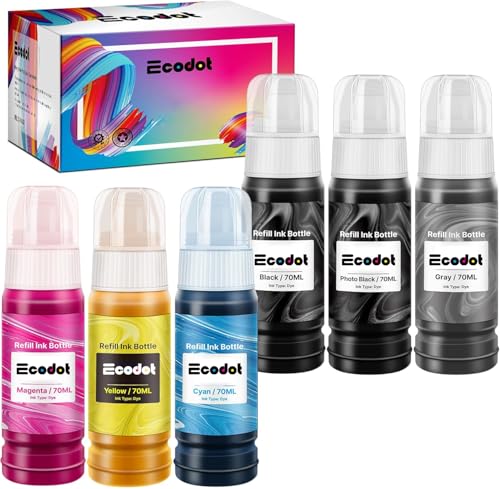
Ink Refill Kits: A Budget-Friendly Option
Ink refill kits allow you to refill your existing ink cartridges with bulk ink. This can save a significant amount of money compared to buying new cartridges.
- The DIY Approach: Refilling ink cartridges can be messy and requires some technical skill. However, with practice, it can be a cost-effective way to save money on ink. See our guide on how to refill ink cartridges.
Ink Tank Printers: A Long-Term Investment
Ink tank printers, such as Epson EcoTank and Canon MegaTank models, use refillable ink tanks instead of traditional ink cartridges. These printers typically have a higher upfront cost but offer significantly lower per-page printing costs.
- The Math: Ink tank printers can save you hundreds of dollars over the life of the printer, especially if you print frequently. We’ve done extensive cost-per-page analysis – check out our comparison of EcoTank vs. MegaTank printers.
Extending ink cartridge life is a combination of smart printing habits, routine maintenance, and a willingness to explore alternative printing solutions. By implementing these tips and tricks, you can significantly reduce your ink costs and keep more money in your pocket. And that’s something we can all appreciate.
Watchdog picks
- WEP 927-IV Soldering Station Kit High-Power 110W with 3 Preset Channels, Sleep MCheck on Amazon → · Buy on Amazon
- myCartridge SUPRINT 245XL Ink Cartridge Replacement for Canon 245XL 246XL Combo Check on Amazon → · Buy on Amazon
- B07Q5J5XJLCheck on Amazon → · Buy on Amazon
- Soldering Iron Kit, 80W 110V LCD Digital Solder Iron Pen with Ceramic Heater, PoCheck on Amazon → · Buy on Amazon
- B07P5Y5QHGCheck on Amazon → · Buy on Amazon
- B07N1DF9VVCheck on Amazon → · Buy on Amazon
- EPSON 552 EcoTank Ink Ultra-high Capacity Bottle Five Color Combo Pack (T552920-Check on Amazon → · Buy on Amazon
- 65XL Ink Cartridge for HP 65 Black Ink Cartridge High-Yield Replacement for HP ICheck on Amazon → · Buy on Amazon
Products in this guide
- Brother Printer LC30193PK Super High Yield XXL 3 Pack Ink Cartridges- 1 Ea: Cyan/Magenta/Yellow InkCheck on Amazon →
- Aomya Ink Refill Kit 100ml for HP 67 61 65 60 62 63 910 920 901 902 932 933 934 940 952 94 95 96 Inkjet Printer CartridgCheck on Amazon →
- HP DeskJet 2755 Wireless All-in-One Printer, Mobile Print, Scan & Copy, Instant Ink Ready, Works with Alexa (3XV17A)Check on Amazon →
- HP DeskJet 2755 All-in-One Wireless Printer Scanner Copier Instant Ink Ready Mobile Print Black 7.5ppm Color 5.5ppm WifiCheck on Amazon →