
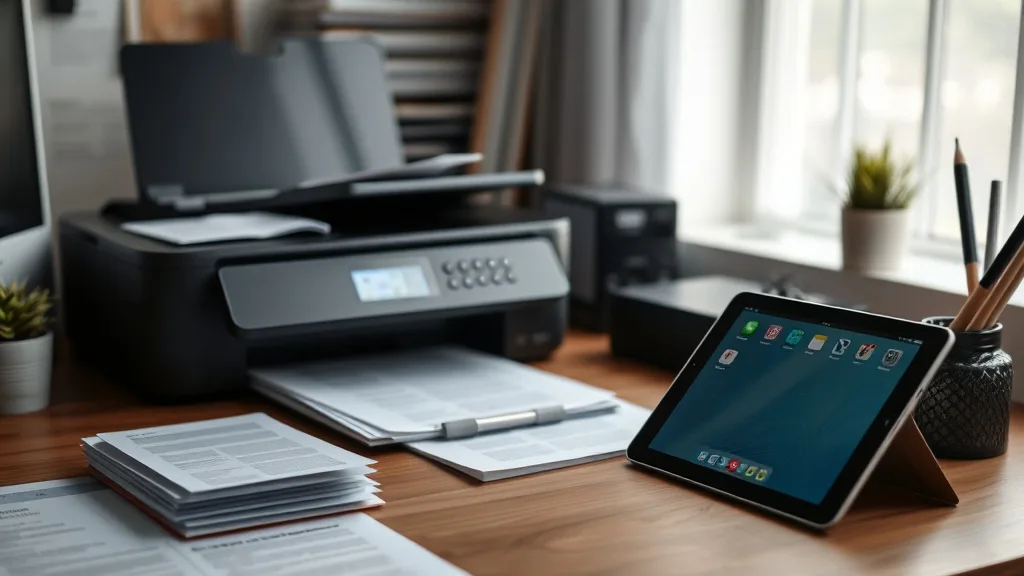
Going paperless is an appealing idea, especially after years of dealing with expensive printer cartridges, frequent paper jams, and bulky devices taking up space. If you’re tired of the constant grind of managing a printer—juggling costly ink replacements and wondering if your documents will come out smudge-free—this article is for you. We replaced our entire printing setup with a combination of a scanner and tablet, cutting recurring costs and streamlining our workflow. Here’s how we made the switch, along with the key considerations and trade-offs involved.
What Going Paperless Means: The Scanner and Tablet Alternative
Going paperless in most home or small office environments means eliminating the need to print documents whenever possible. Instead of paper copies, files are scanned, saved, annotated, and shared digitally. This typically involves two main tools:
- Scanner: A device or multifunction printer that digitizes physical documents with high-resolution scans.
- Tablet (or equivalent device): A touchscreen device for viewing, organizing, marking up, and sharing documents.
Replacing a printer with these two tools removes the dependency on costly cartridges and fragile paper feeding, while offering greater flexibility in document management.
See also: 25. Why the Brother HL-1210W might be the cheapest printer to own
How the Scanner and Tablet Setup Works in Practice
Phone cases - Sponsored - 15% off first order
Phone Case Gift - They pick the model · 2 minutes Code FIRST15GIFTThe process generally looks like this:
-
Scan documents: Use a standalone scanner or an all-in-one device in scanner mode to create digital copies of your physical paperwork. Modern scanners offer high-resolution color scans at 300 dpi or more.
-
Capture on tablet: Transfer scanned files—usually PDFs or JPEGs—to a tablet for easy access. You can use Wi-Fi transfer, cloud storage (Dropbox, Google Drive, OneDrive), or direct USB connections.
-
Manage and annotate: Use apps on the tablet to organize files into folders, annotate PDFs with a stylus or finger, highlight, sign documents, or even search text with OCR (optical character recognition).
-
Share or archive digitally: Send documents via email, upload shared links, or archive digitally in your preferred workflow without ever needing to print.
This setup requires initial effort but leads to significant savings and efficiency gains over time.
When to Use the Scanner and Tablet Setup Over a Printer
The scanner and tablet combination is a great alternative—particularly when:
- You rarely need physical copies of documents and can work mostly with digital files.
- Your main printer costs have ballooned due to expensive cartridges or frequent replacements.
- Your use case involves lots of document signing, annotating, or sharing rather than bulk printing.
- You want a more portable, minimal setup without ongoing maintenance headaches.
- You handle archival paperwork that only needs to be digitized, not printed or faxed.
Practical Benefits Compared to Printer-Cartridge Setups
Phone cases - Sponsored - 15% off first order
Titan Case - Precision fit · 2,000+ designs Code FIRST15TITHere’s a comparison matrix highlighting key differences between a traditional printer and the scanner plus tablet combination:
| Feature / Aspect | Brand-Name Printer Setup | Scanner + Tablet Paperless Setup |
|---|---|---|
| Initial cost | Moderate (printer hardware cost) | Moderate to high (scanner + tablet combined) |
| Ongoing cost | High (cartridges, paper, maintenance) | Low (mostly app/software and cloud storage) |
| Cost-per-page | Typically $0.10-$0.50 per page (color) | Near zero (scanning one-time, no consumables) |
| Print yield dependence | Dependent on cartridge yield & compatibility | No cartridges involved |
| Document access & annotation | Limited to printed copies | Instant digital markup and editing on tablet |
| Space & portability | Bulky, stationary device | Portable tablet, compact scanner options |
| Reliability | Susceptible to ink drying/setup issues | Mostly reliable hardware, fewer moving parts |
| Compatibility risks (cartridge chip locks, OEM issues) | Frequent problems with third-party cartridges and chip lockouts | No chip lockouts or cartridge issues |
| Workflow integration | Paper-based, physical mailing or scanning needed | Digital workflow, cloud & collaboration friendly |
| Eco impact (paper/ink waste) | High due to paper and cartridge disposals | Lower, more environmentally friendly |
Common Pitfalls to Avoid When Going Paperless
Moving to a scanner and tablet setup isn’t entirely hassle-free:
-
Scanner speed and quality: Low-end or outdated scanners may frustrate users with slow scan times or low resolution. Invest in a fast, well-reviewed option.
-
File organization: Without a disciplined digital folder and naming system, scanned documents can quickly become overwhelming. Setup dedicated workflows or use document management apps.
-
Tablet app limitations: Not all annotation or PDF apps have the same functionality. Trial multiple apps to find one that fits your workflow needs for editing and sharing.
-
Cloud dependency: Heavy reliance on cloud services may raise privacy or security concerns. Consider local storage options if that’s a priority.
-
Missing physical copies: There are rare cases where a signed physical original or printed form is required (legal, medical, or governmental paperwork). Keep a minimal printer or access to one for these exceptions.
Step-by-Step Guide to Transition From Printer to Scanner + Tablet Workflow
Phone cases - Sponsored - 15% off first order
Phone Cases For Charity - Every case supports a cause Code GIVE10-
Evaluate your current print needs: How often do you print? What types of documents? Are they mostly pages you could scan instead?
-
Research and purchase a good standalone scanner: Look for compatibility with your devices, resolution (300 dpi is standard), duplex scanning, and speed.
-
Select a tablet or touchscreen device: The size and OS depends on your workflow. iPads, Android tablets, or Windows Surface devices all work well, depending on your app preferences.
-
Choose document management and annotation apps: Popular apps include PDF viewers with annotation tools, cloud sync capabilities, and built-in OCR for searchable documents.
-
Set up cloud storage or local file transfer: Establish a way to get scans onto your tablet seamlessly—Wi-Fi transfer, shared folders, or cloud sync.
-
Digitize backlog and start scanning incoming docs: Begin scanning all existing important paper documents. Develop a routine for digitizing new paperwork immediately, reducing physical piles.
-
Organize and label scanned documents: Use intuitive folder structures and consistent naming to find files easily.
-
Learn annotation and sharing tools: Get familiar with highlighting, signing, or redacting documents digitally so you can replace physical markups.
-
Test backup and recovery: Ensure your scans and annotations remain safe with regular backups or cloud syncing.
-
Evaluate and adjust: After a few weeks, analyze what’s working and tweak your app choice, scanner usage, or tablet organization accordingly.
Frequently Asked Questions
Q: Will I completely eliminate printing costs with a scanner and tablet?
A: Mostly yes. You avoid cartridge and paper expenses, but you might still need a printer occasionally for rare physical originals or forms.
Q: How do I handle documents that require signatures?
A: Tablets allow you to digitally sign documents using a stylus or finger, and many apps integrate with digital signature standards accepted by many organizations.
Q: Are third-party scanners and tablets reliable alternatives to brand-name printer devices?
A: Generally yes, scanners and tablets from a variety of manufacturers are reliable, but quality varies more than printers. Read reviews and opt for models known for durability and ease of use.
Transitioning away from a costly, cartridge-dependent printer setup to a scanner and tablet-based paperless workflow can save significant money and hassle while modernizing your document handling. The key is to invest upfront in a good scanner and tablet, establish solid habits for scan management, and pick flexible software to tailor your digital office environment. This approach turns your documents into living files you can manipulate, archive, share, and find effortlessly—without ever loading a cartridge again.
Top Picks
Watchdog picks
- B001QY8QXM
- B0CCNKGY6J
- HP Original 962 Cyan, Magenta, Yellow / 962XL Black Ink Cartridges (4-Pack) - Wo
- B01N4QAK9O
- Downy Fabric Softener Dryer Sheets, April Fresh, 120 Count
- B08PDHVZ4N
- 962XL Ink Cartridges for HP 962XL Ink Cartridges Combo Pack Work for HP Officeje
- Hakko T18S3P Tip for Fx-888 Station, 5.2mm
Products in this guide
- Epson EcoTank Wireless Color All-in-One Cartridge-Free ET-3850 Supertank Inkjet Printer for Home Office, Scanner, Copier
- HP (Refurbished) OfficeJet Pro 9015e All-in-One Wireless Color Printer for Home Office, Compatible with Alexa (1G5L3A) (
- Epson EcoTank ET-2800 Wireless Color All-in-One Cartridge-Free Ink Supertank Printer with Scan and Copy for Home Use, Wh
- Epson EcoTank ET-2800 Wireless Color All-in-One Cartridge-Free Ink Supertank Printer with Scan and Copy for Home Use, Bl