
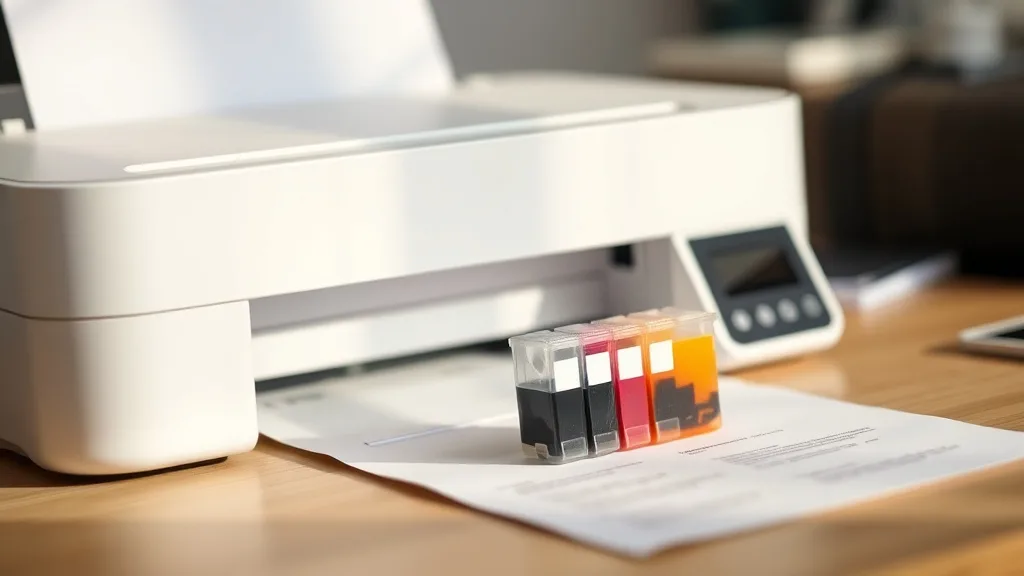
Refilling your own printer ink cartridges can feel daunting, especially when faced with the high cost of brand-name replacements. If you’ve ever been frustrated by expensive OEM cartridges or empty cartridges when you have an urgent printing job, this step-by-step guide will walk you through the process of refilling at home. You’ll learn how to avoid common mistakes, minimize risks, and get more prints for less money without sacrificing print quality.
Why Refill Your Ink Cartridges?
Before diving into the steps, it’s important to understand why refilling is worth considering:
- Cost Savings: OEM cartridges can cost several times more than the ink alone. Refilling can cut your costs to a fraction.
- Waste Reduction: Refilling reduces plastic waste by reusing cartridges.
- Convenience: You can often refill on your schedule instead of hunting for replacements.
- Satisfactory Print Quality: With proper technique, prints can come out almost as sharp as OEM cartridges.
However, refilling isn’t without risks — improperly refilled cartridges can leak, damage your printer, or show error messages because of chip lockouts. We address those risks in the steps below.
See also: How to Extend Printer Ink Cartridge Life for Maximum Savings
What You’ll Need to Get Started
Phone cases - Sponsored - 15% off first order
Phone Case Gift - They pick the model · 2 minutes Code FIRST15GIFT- Empty or near-empty ink cartridge(s) compatible with your printer model.
- High-quality refill ink specific to your ink type (dye-based or pigment).
- Syringe(s) with needle tips (often included in refill kits).
- Gloves and kitchen paper towels to prevent stains.
- A small flat tool (like a plastic prying tool) to open cartridge fill ports if necessary.
- Printer and test pages for checking refill success.
Step-by-Step Guide to Refilling Your Ink Cartridge
Step 1: Identify Your Cartridge Type and Ink Requirements
Not all cartridges are designed the same. Check your printer manual or cartridge packaging to determine:
- Cartridge model number.
- Ink type needed: dye-based or pigment ink.
- Cartridge capacity / page yield (to estimate how much ink to refill).
Using the correct ink formulation is critical for print quality and to avoid clogging.
Step 2: Prepare Your Workspace
Refilling is messy—set up on a flat, covered surface in a well-lit area. Use gloves and keep paper towels handy. Have your cartridge, ink bottles, syringe, and printer nearby.
Step 3: Remove the Cartridge from the Printer
Turn off your printer and remove the cartridge carefully following the manufacturer’s instructions. Handle it gently to avoid damage.
Step 4: Locate or Create the Fill Port
Some cartridges have a designated fill hole covered by a label, a plug, or a sealed plastic membrane.
- If visible: Peel back the label or open the plug carefully.
- If not visible: You may need to create a fill hole. Use a small drill bit or needle to gently puncture a hole on top of the cartridge—usually near the center but away from electrical contacts.
Step 5: Draw Ink into the Syringe
Draw the correct amount of ink into your syringe according to cartridge capacity. For example, small cartridges take 7-10 ml ink, large photo cartridges can take 20 ml or more. Avoid overfilling.
Step 6: Inject Ink Slowly
Insert the syringe needle into the fill hole and inject ink slowly to avoid air bubbles and spills. If you feel resistance or see ink leaking excessively, stop immediately.
Step 7: Seal and Clean the Cartridge
After filling, reseal the fill hole with label tape or adhesive putty to prevent leaks. Wipe any spilled ink from cartridge surfaces.
Step 8: Reinstall the Cartridge and Run Printer Cleaning Cycles
Insert the cartridge back into the printer. Run a few printer head cleaning cycles and print a test page to help ink flow and detect any issues.
Step 9: Monitor Print Quality and Cartridge Performance
Over the next few print jobs, watch for:
- Streaks or faded prints (may require another cleaning).
- Cartridge recognition errors (may need chip reset or replacement).
- Ink leaks inside the printer (stop usage if detected).
Risks and Benefits of Refilling vs New OEM or Compatible Cartridges
Phone cases - Sponsored - 15% off first order
Titan Case - Precision fit · 2,000+ designs Code FIRST15TIT| Feature/Aspect | OEM Cartridge | Compatible Cartridge | Self-Refilling Cartridge |
|---|---|---|---|
| Cost per page | High (typically 3-5x refill cost) | Moderate, less than OEM | Lowest, mainly ink cost only |
| Print quality | Consistently high | Varies, often acceptable | Varies, depends on refill skill and ink quality |
| Reliability | Very reliable | Generally reliable | Risk of clogging or leaks if done improperly |
| Chip lockout issues | Not applicable | Possible depending on model | Frequent; chips may need reset or bypass |
| Ease of use | Plug and play | Plug and play | Requires manual steps, time and patience |
| Environmental impact | Higher waste | Lower than OEM | Lowest waste; reuse original cartridge |
| Initial investment | High for cartridge | Moderate | Low for refilling supplies |
| Yield consistency | Guaranteed by OEM specs | Varies | Varies due to fill accuracy and ink quality |
Tips to Maximize Success When Refilling Your Printer Cartridge
- Always use ink designed for your cartridge and printer model.
- Avoid overfilling; excess ink causes leaks.
- Perform regular print head cleanings and nozzle checks post refill.
- Consider cartridge chip resetters or compatible chips if you see error messages.
- Don’t reuse damaged or heavily worn cartridges.
- Practice patience; test one cartridge first before scaling.
- Keep spare syringes and ink handy for timely refills.
Frequently Asked Questions
Phone cases - Sponsored - 15% off first order
Phone Cases For Charity - Every case supports a cause Code GIVE10Q: Will refilling my cartridge void my printer warranty?
A: Often yes. Most manufacturers state that modifying cartridges voids warranty. Weigh cost savings against potential service limitations.
Q: How many times can I refill a single cartridge?
A: Typically 3-5 times before print quality or cartridge integrity declines, but it varies by cartridge design and handling.
Q: What do I do if my printer won’t recognize a refilled cartridge?
A: Try cleaning cartridge contacts, resetting the chip with a chip resetter tool, or replacing the chip (if possible). Otherwise, compatible cartridges may offer fewer recognition issues.
Refilling your own ink cartridges is a practical way to cut costs if you print frequently and are comfortable with a bit of hands-on maintenance. By following the steps and precautions above, you can extend cartridge life, print economically, and reduce waste — all without sacrificing too much quality or convenience.
Top Picks
Watchdog picks
- HP Original 67 Tri-Color / 67XL Black Ink Cartridges (2-Pack) - Works DeskJet 12
- Downy Fabric Softener Dryer Sheets, April Fresh, 120 Count
- Under Armour Women’s UA Charged Assert 8 Running Shoes 12 Black
- Soldering Kit, 60W Soldering Iron, 110V Welding Kit with Ceramic Heater, Portabl
- Skydo LC3019XXL Ink Cartridges Replacement for LC3019 XXL LC 3019-XXL LC3019 Wor
- B0FMBTJLX6
- WEP 927-IV Soldering Station Kit High-Power 110W with 3 Preset Channels, Sleep M
- Utopia Bedding Bed Pillows for Sleeping Queen Size (Blue), Set of 6, Cooling Hot
Products in this guide
- HP OfficeJet Pro 8125e Wireless All-in-One Color Inkjet Printer, Print, scan, Copy, ADF, Duplex Printing Best-for-Home O
- Inkjet Refill Kit Pro — Compatible with HP, Canon, Epson, and Lexmark Cartridges
- HP DeskJet 2755 Wireless All-in-One Printer, Mobile Print, Scan & Copy, Instant Ink Ready, Works with Alexa (3XV17A)
- HP (Refurbished) OfficeJet Pro 9015e All-in-One Wireless Color Printer for Home Office, Compatible with Alexa (1G5L3A) (